📊 How-To: Project management and process planning
The InfoRapid KnowledgeBase Builder is not just a tool for research, but also an extremely powerful platform for project managers, developers, and teams. By combining hierarchical structures, cross connections, and automatic layouts, even highly complex projects, workflows, and work breakdown structures can be visually tamed.
This How-To shows you how to optimally use the app for planning and controlling your projects.
1. Modeling workflows and processes (Flowcharts)
Flowcharts are essential for planning software projects, business processes, or decision trees.
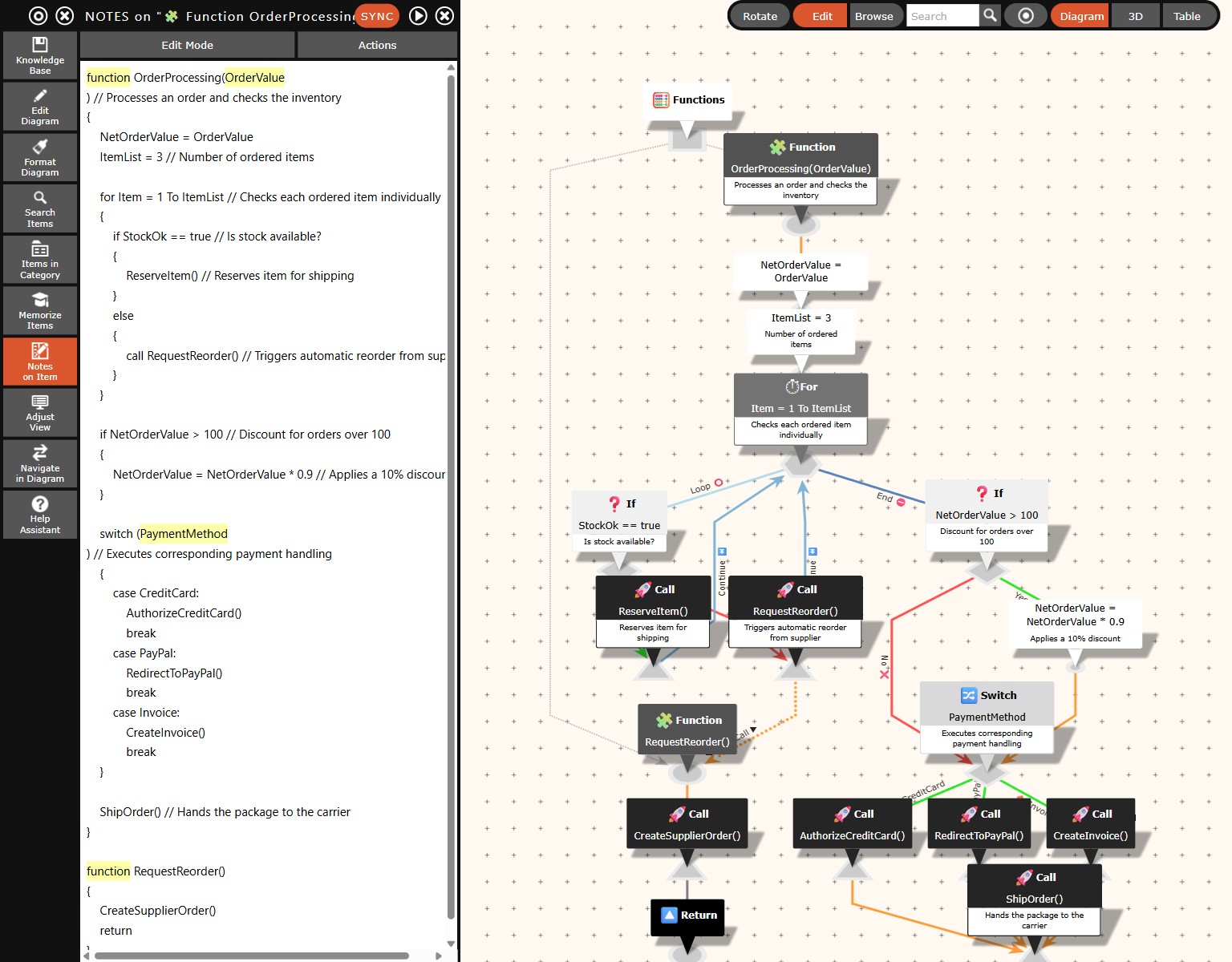
- Automation via pseudocode: Instead of painstakingly drawing every box by hand, you can simply write workflows as text! Go to "Edit Diagram" -> "Insert" -> "Pseudocode". Enter simple commands there (like
if,while,switch). The program generates a finished, logically linked flowchart from this in fractions of a second. - Choosing the right layout: In the "Adjust View" menu, switch to "Flowchart (top -> bottom)" or "Flowchart (left -> right)" in the "Layout" section to force the process into a strict, linear flow direction.
2. Structuring and prioritizing tasks (WBS & Table View)
A project often begins with a work breakdown structure (WBS).
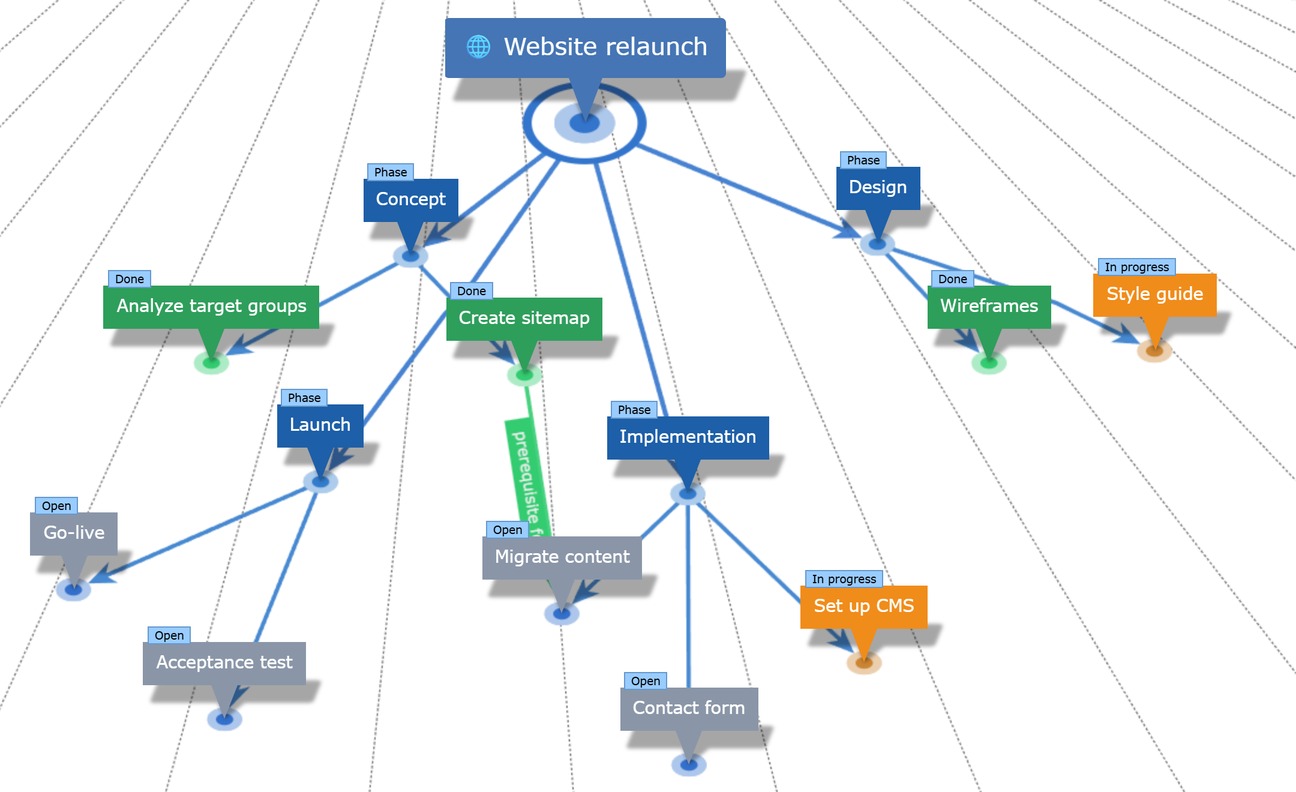
- Hierarchical layout: Under "Adjust View" -> "Layout", select the "Hierarchical" or "Hierarchical Grouped" option. This is ideal for breaking down the overall project into individual milestones and underlying work packages (tasks).
- Set priorities via Table View: To prioritize tasks or bring them into a specific processing order, switch to the "Show Table View" via the toolbar at the top right. Here you can see your structure as a clear list and can easily drag and drop the tasks to the desired position.
3. Creating schedules and timelines
Projects are time-critical. You can link items in the diagram directly to time-related data.
- Storing times: Open an item (e.g., a milestone) with Edit and switch to the Dates tab in the properties dialog. At the top you pick the type of the item, for instance task, milestone, event or person. The type decides which fields are offered: a task has start, due date, end, status, priority, estimate and assignee, a person has birth, death, place of birth and place of death. Date fields take a day or a day with a time. Fields that are already filled in are always shown whatever the type, so switching the type can never hide anything.
- Showing data in the diagram: In the Adjust view menu, Show data fields turns the table under the item name on and off, both the stored values and the rows that come from table relations. The data fields sit below the rows that come from table relations, written the way your interface writes dates: 26.04.1889 or 04/26/1889, a time of day only when one is stored, a choice value translated instead of as its key. The switch is on by default and is stored per diagram. Items grow taller with it, which matters most in the 3D view.
- The timeline: The button next to the search field shows a strip below the drawing area that holds every dated item of the database: tasks with a start and an end as bars, single dates as points. Clicking an entry makes that item the centre of the diagram. The strip stays open while you do so, which makes it suited for walking through a project along its schedule.
- What the timeline shows per type: the type decides which fields reach the strip. A person appears with their life span from birth to death, a milestone with its due date, an event with its start and end. Deadlines are drawn as a diamond and ordinary points in time as a circle, the usual notation for a milestone. A task with a period and a due date appears twice: as a bar and as a diamond, the latter carrying its field in its name, "Sprint 12 (Due)". Filled fields are always shown here as well: turn a person into a milestone and you still see the life span. Dragging always moves the field the entry came from, so a person's bar moves birth and death, not start and end.
- Dating an item by dragging: In edit mode, drag an item from the diagram onto the strip, using the same grip that creates a relation. A line follows the pointer, and a mark in the strip shows which point in time it would hit. Release, and the item gets that date. An item that already has one keeps its time of day and its duration, it only moves. This is the quickest way to give an item its first date without opening the dialog.
- Moving dates on the timeline: In edit mode you drag a bar to another place with the mouse, and the start and the end move together. Drag one of its two edges instead and only that side moves, which changes the duration. Dragging the name next to it moves the end as well, and that is also how you give a single date an end and turn it into a period. Drag the end back onto the start and the period becomes a single date again, with the end field left empty. The step follows the zoom: with hours on the axis you move in minutes or hours, with days in days, with months in months, with years in years; a time of day is preserved, and a date without one gets a time when you move it in minutes or hours. Drag to the left or right edge of the strip and the visible period moves along, the way the diagram scrolls under a dragged card, so you can reach dates far outside the current section. While you drag, a tooltip shows the period that would be stored.
- Weekends on the timeline: Saturday and Sunday sit on a shaded band, and from the day level onwards the weekday appears in the label. That shows at a glance whether a task runs across a weekend or ends on a day off. Zoomed far out the band disappears, because the days get too narrow. Dragging still counts calendar days, not working days.
- Zooming the timeline: with the + and − buttons in its header, with the mouse wheel, or with two fingers on a touch device. The bar at the very bottom shows the whole data set; drag inside it to move the visible section.
- Back to today: the Today button in the header moves the visible section to the current day without changing the zoom. Useful once you have scrolled far away, or when a knowledge base holds birth dates from the century before last.
- When it gets crowded: where not every entry fits on top of each other, a number such as +7 appears. Hover over it and the tooltip names what is hidden; a click enlarges the timeline until everything fits, up to seventy percent of the window height. The selected item and the root item always get a place, however flat the strip is.
- The Timeline view: Pro tip: Use the "1-Column Grouped" layout in the "Adjust View" menu. This arrangement is ideally suited for displaying chronological sequences (timelines) in a visually appealing way, one below the other.
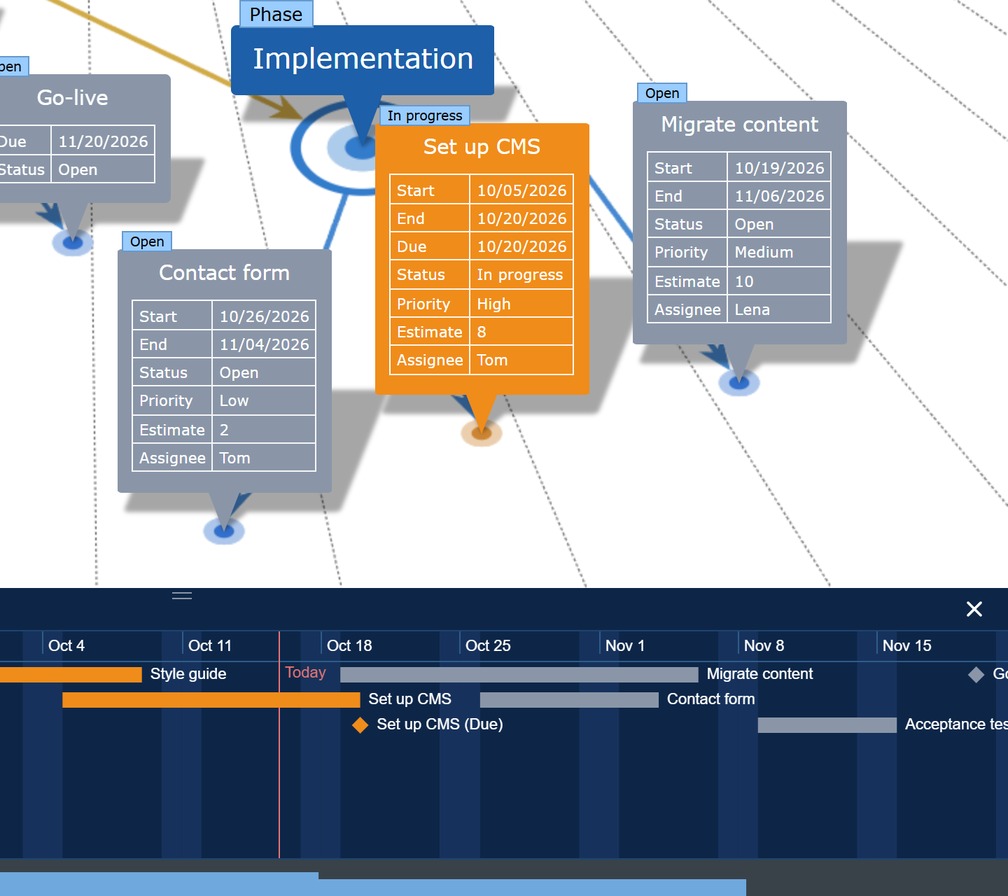
A complete description of the strip — header, overview bar, height and all of its gestures — can be found under Adjust View → Timeline. Which fields exist at all, and how to add your own, is described under Edit Diagram → Tab: Dates.
4. Managing dependencies and responsibilities
In complex projects, tasks often depend on each other, even if they belong to completely different project phases.
- Visualize dependencies (Cross-Links): Simply drag and drop a relation line between two tasks that depend on each other. Using the "Show Cross Connections" option (in the "Adjust View" menu), you can flexibly show or hide these dependencies at any time to maintain a clear overview.
- Status and responsibilities via categories: Assign categories to your items in a targeted manner (e.g., "To-Do", "In Progress", "Done" or the names of the responsible team members).
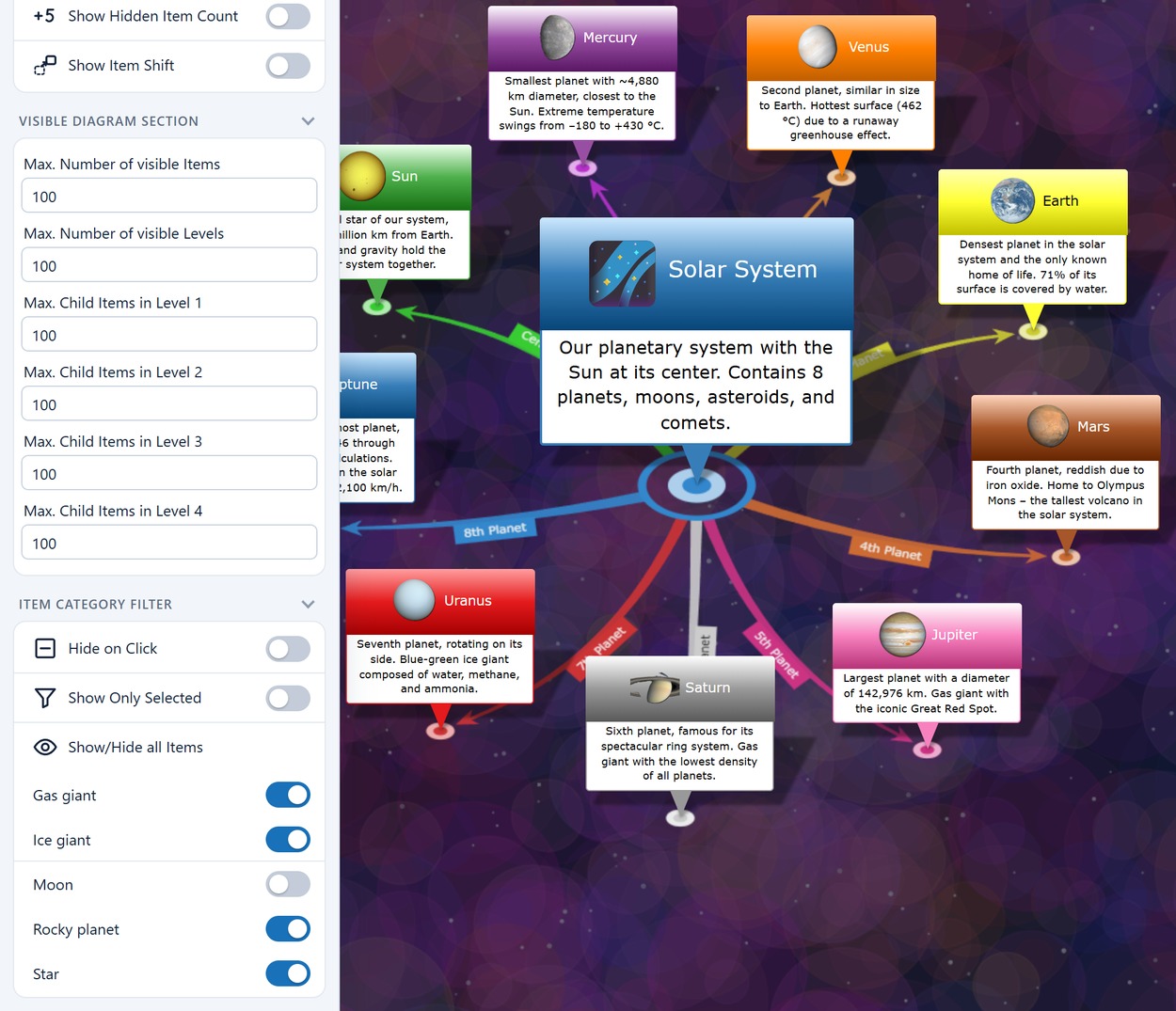
- Filter categories: Using the "Item Category Filter", you can then quickly display only the tasks that are currently "In Progress", for example, while all completed tasks are hidden from the visible diagram.
5. Comprehensive project documentation
A project node can hold much more than just a short task title.
- Detailed briefings (Notes): Use the "Notes on Item" menu to store detailed task descriptions, checklists, or minutes in HTML format (including tables and lists) directly on the item.
- Documents & Weblinks: Add external internet addresses or local file links in the editor via the hyperlink symbol. This turns your mind map into a central dashboard from which you can access all relevant project files (like Google Docs, SharePoint links, or reference pages) with a single click.
- Presentation mode for team meetings: If you want to present the current project status to the team, switch to the "Tools" menu and click on "Start Presentation". The app will then guide you and your team smoothly, professionally, and automatically through the most important nodes of your project.