🌐 How-To: Web Research and Knowledge Acquisition
For "Information Workers", students, and researchers, InfoRapid KnowledgeBase Builder is an ideal tool for quickly capturing and structuring new knowledge from the internet. Instead of collecting loose bookmarks in browsers, you build an interactive, networked database that you can search and visualize at any time.
This How-To shows you the optimal workflow for efficient web research.
1. The Information Worker Workflow (Research & Automation)
When you familiarize yourself with a completely new topic, the combination of web search and "text-to-item" automation is the fastest way to build a network.
- Set a starting point: Create a new item for your main topic (e.g., "Mind Map").
- Search directly from the app: Move the mouse over the item (or tap on it on mobile devices) until the tooltip appears. Click on the magnifying glass symbol. A menu opens from which you can directly select a search engine (like Google Web Search, Wikipedia, Google Scholar, YouTube, etc.). Your browser will then open automatically with the search results.
- Collect text: Copy relevant text excerpts from the search results to the clipboard and paste them in the left menu under "Notes on Item".
- Extract knowledge automatically: Open the "Actions" menu in the notes window and switch on "Create new items automatically".
- Highlight magic: As soon as you highlight an important word or term in your pasted note text, the app creates a new sub-item in the diagram in a flash. The highlighted term becomes the name of the new node, and the associated sentence is fully automatically saved as a description (tooltip).
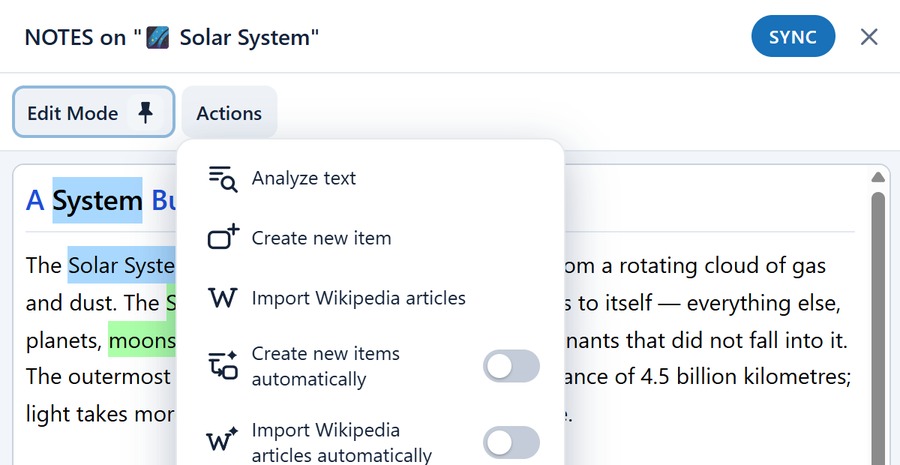
Result: After a few minutes of reading text, you have generated a huge mind map with numerous subtopics, which you can then use individually as new starting points for even deeper searches.
2. Wikipedia as a Direct Data Source
Wikipedia is one of the best sources for structured data. The app offers deep integrations to transfer these directly into your diagrams.
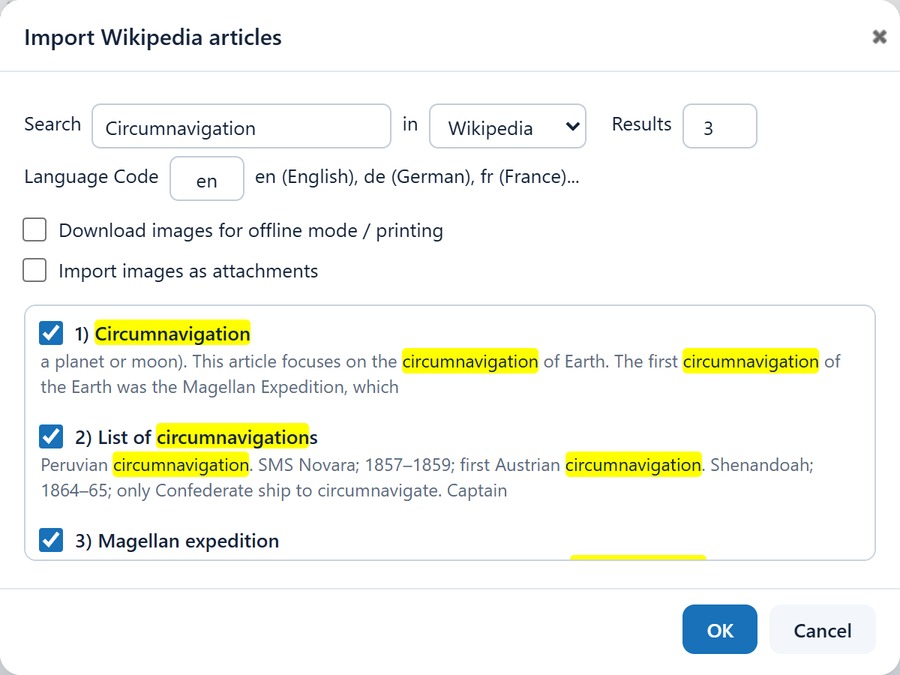
- Import complete articles: Go to "Edit Diagram" and click on "Import Wikipedia articles". Enter a search term and the desired language code (e.g., "en" or "de"). The app downloads the complete article (including images if desired) and inserts it formatted as a branched item into your map.
- Images as attachments instead of inside the node: The Import images as attachments checkbox in the import dialog decides where the main image of an article ends up. Switched off it goes into the item name, scaled down; switched on it goes into the attachment repository at a high resolution and is attached to the item. The latter keeps the nodes slim and the images available in full quality; the same option exists for the Wikidata import.
- Enrich existing items: With the "Complete Items with Wikipedia" command, the system compares existing items in your diagram with Wikipedia and enriches them with the corresponding background information.
- Automatic import when highlighting: If you switch on "Auto import Wikipedia articles" in the "Actions" menu of the notes, the app will immediately try to download the matching Wikipedia article in the background for every highlighted word in your text note and attach it as a node to your diagram.
3. Integrating Webpages and Structured Databases
In addition to pure text excerpts and Wikipedia, you can also integrate other web sources directly into your diagram.
- Import complete webpages: Via "Edit Diagram" -> "Import Webpage" you can specify a URL. The app reads the content of the webpage and transfers it directly into your diagram.
- Links as import triggers: In the "Actions" menu of the notes, you will also find the "Import linked webpage on click" switch. If you then click on a hyperlink in your note text, the target webpage is read directly and its content is imported as a new diagram item, instead of just opening it in a separate browser window.
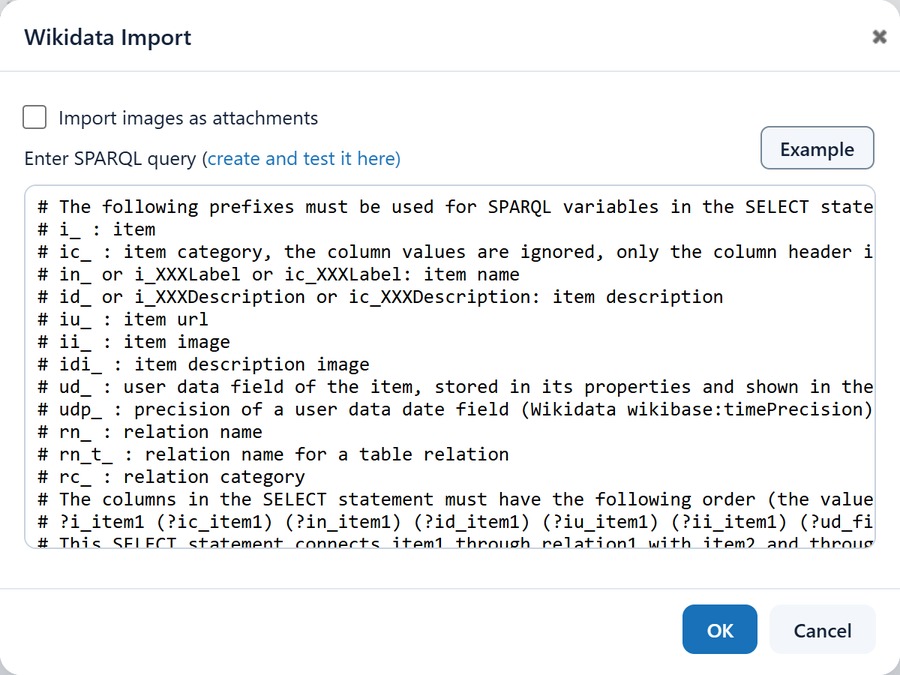
- Wikidata Import (For structured data): If you are researching historical family trees, geographical data, or corporate structures, for example, you can use "Edit Diagram" -> "Wikidata Import" to import complex datasets directly from Wikidata using a SPARQL query.
4. Automatically Analyzing Large Web Documents
If you have found very long text documents during your research, you do not have to work through them completely by hand.
- The text analysis function: Use "Edit Diagram" -> "Insert" -> "Analyze Text". (Alternatively, you can also paste note text and call the function via the Actions tab).
- Paste your long continuous text into the dialog box and select the language.
- The system searches the text for frequent and relevant key terms and automatically filters out unimportant stop words (you can also add to the list of stop words, endings, and abbreviations yourself if necessary).
- From this analysis, a networked mind map of the most important words is generated automatically. The original sentences from the text in which the terms appear are saved as notes or descriptions directly on the new nodes.