🔍 How-To: Error Analysis and Troubleshooting
For support teams, technicians, and IT administrators, fast and precise error diagnosis is crucial. The InfoRapid KnowledgeBase Builder is the perfect tool for building interactive decision trees and fault trees (Fault Tree Analysis). Instead of digging through endless PDF manuals, you can visually click your way from the issue to the solution.
This How-To shows you how to optimally use the app for error analysis and everyday support.
1. Structuring the decision tree (Layouts)
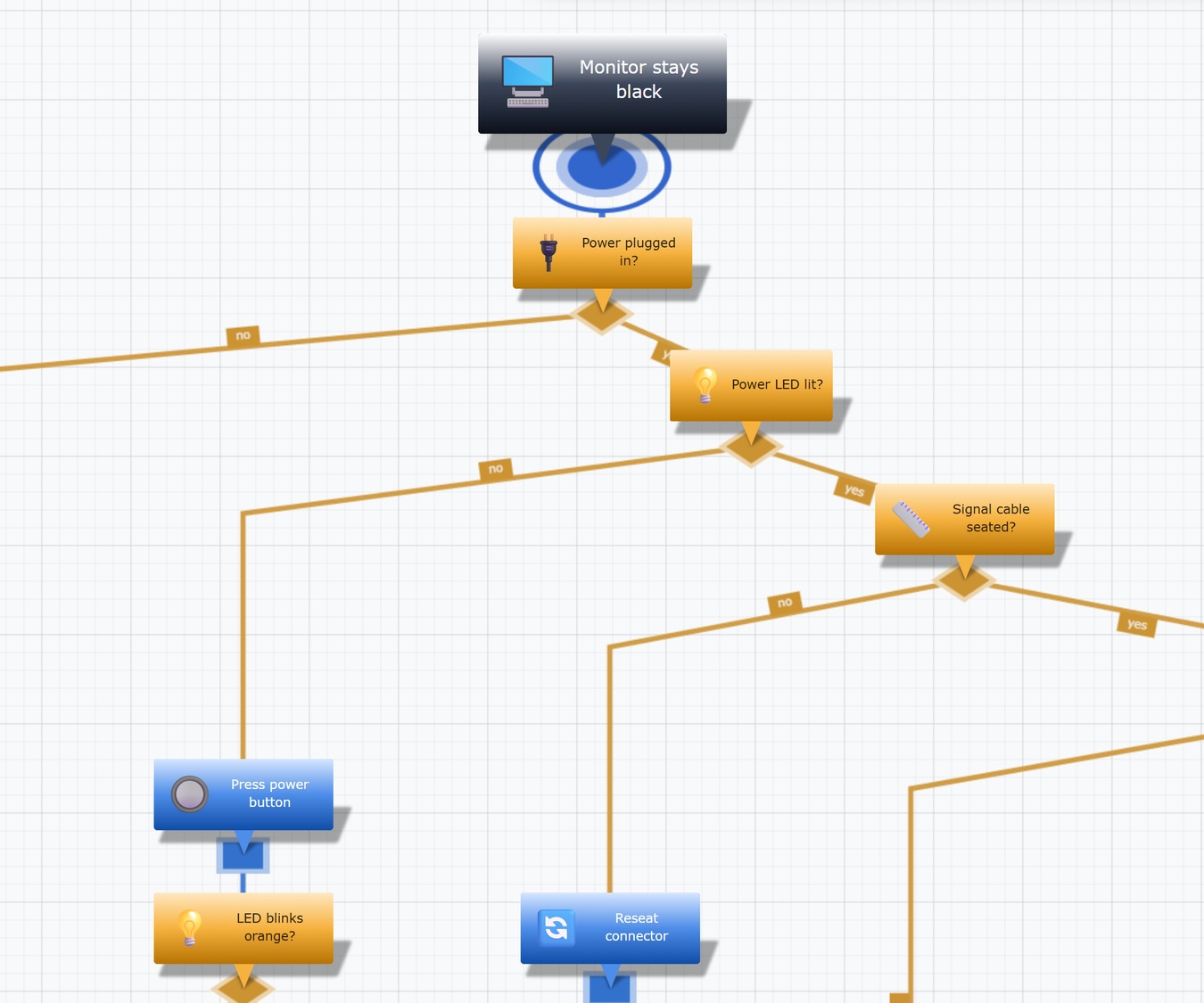
A good troubleshooting diagram guides the user step by step through a logical sequence of questions (e.g., "Is the LED lit? Yes / No").
- Choosing the right layout: Go to the Adjust View menu and select the Flowchart (top -> bottom) or Flowchart (left -> right) option in the Diagram section under Layout. This forces your diagram into a clear, downward or sideward directed tree structure, which is ideal for processes and "if-then" decisions.
- Using the example file: The program already includes a ready-made template! Look in the Knowledge Base menu under Examples and open the example database Error Analysis (decision tree for error analysis on PCs) to get inspired.
2. Lightning-fast creation via pseudocode
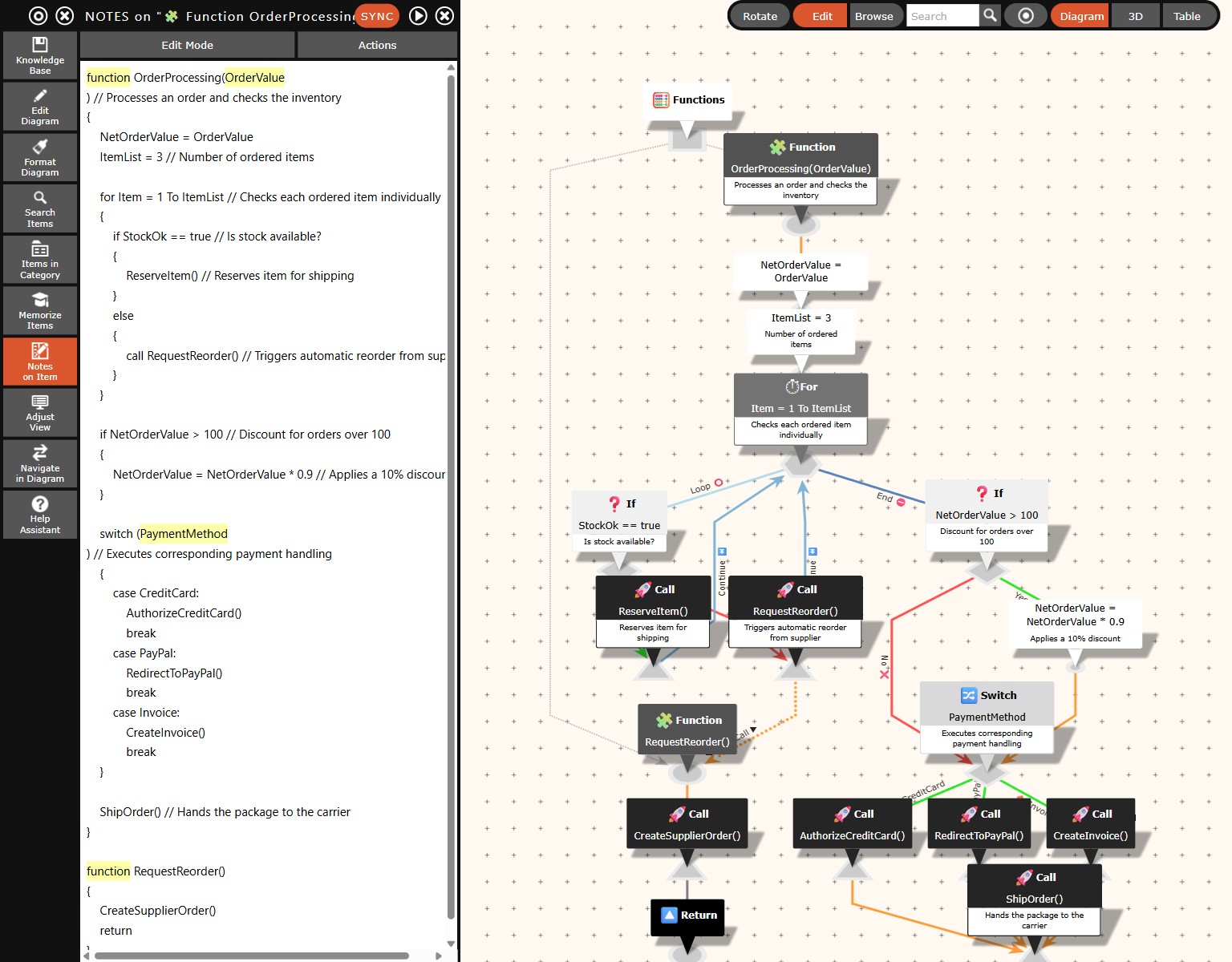
Especially in IT support, troubleshooting steps can be written down excellently in the form of logical code conditions. You don't have to draw every single box and branch for your decision tree by hand.
- Automated generation: Use the menu Edit Diagram -> Insert -> Pseudocode.
- Simple logic: Write down your diagnostic path as simple text. Enter commands like
if,else,switch,caseorcallthere. A detailed guide of all commands and loop types can be found in the Pseudocode Syntax Reference.
Example:
if (Screen == black)
{
    call Check_power_cable()
    if (No power)
    {
        Solution = "Replace cable"
    }
    else
    {
        call Check_graphics_card()
        if (Graphics card defective)
        {
            Solution = "Replace graphics card"
        }
        else
        {
            Solution = "Replace monitor"
        }
    }
}
else
{
    Solution = "Investigate other problem"
}
From this text, the program generates a completely networked and logically linked flowchart in fractions of a second.
3. Categorizing symptoms, causes, and solutions
To ensure your knowledge base remains clearly arranged even with thousands of support cases, proper classification is essential.
- Define categories: When creating your items, always assign them a clear category, such as
"Symptom","Cause","Check step"or"Solution".
4. Integrating visual aids and manuals
Often, a short text is not enough to explain a complex checking or repair step.
- Evidence photos and screenshots: Use Edit Diagram -> Insert Images to attach photos of defective components or screenshots of error messages directly to the corresponding nodes. These serve as an immediate visual reference for the technicians in the tooltip.
- Detailed solutions (Notes): Use the Notes on Item menu to store detailed repair instructions, formatted HTML texts, checklists, or tables directly on the solution node.
- External references: Using the hyperlink field in the item dialog, you can link directly to internal company wikis, manufacturer pages, or external manuals, with the link icon then appearing as a clickable symbol on the item.
5. Guided navigation in a support case
When a customer calls or a ticket comes in, navigating through the fault tree must be extremely fast.
- Center and Focus: Search for the reported problem using the Search Items function (which also performs a full-text search in notes and descriptions) and make the search result the center (root item) with a click. The system immediately centers the node in 3D space.
- Following the path: The technician can now simply follow the labeled relation lines ("Yes", "No") by clicking until they reach the solution node.
- Browsing back: If the technician has navigated into a dead end or the customer has answered a question incorrectly, they can simply click on Browse Back in the Navigate in Diagram menu. The program jumps exactly the path you took when clicking through the diagram, step by step backwards.