🗄️ Knowledge Base
The Knowledge Base menu is the central hub for file management, data exchange, and backing up your projects in the InfoRapid KnowledgeBase Builder. Here you manage your local .kdb database files as well as your cloud documents and control all import and export functions.
📁 File (Local App Versions)
In this section, you will find all the basic commands for handling your local database file (Windows, macOS, iOS, Android).
- New: Creates a new, empty knowledge base.
- Open: Opens an existing database from your local device or a connected cloud directory.
- Reload: Reloads the currently opened knowledge base. Important for cross-platform work: If you synchronize your database via a cloud service (e.g., Google Drive) and have made changes on another device, you must manually update the file on the current device using this command.
- Save: Saves the current changes in the opened database file.
- Save as: Saves the database under a new name or in a new location. Note for Android users: Due to strict privacy guidelines ("Scoped Storage") starting from Android 11, you should use this command to save files in the official "Download" folder to avoid the "missing write permission" error.
- Reduce Database Size: This command optimizes your file by permanently deleting all entries from the "Undo" and "Redo" lists and removing empty space from the SQLite database.
- Save Diagram as Image: Exports the visible section of your diagram as an image file. Pro tip: Before exporting, increase the zoom slider in the Adjust View menu to 150% or 200% to get a razor-sharp, high-resolution image.
- Print: Prints the diagram on a connected printer.
- Share: Creates a screenshot of the diagram and makes it available to other apps (e.g., email, messenger).
- Properties: Displays detailed database properties. Here you can see statistical values such as the number of items and relations, the file size, the database ID, and the number of used item and relation categories.
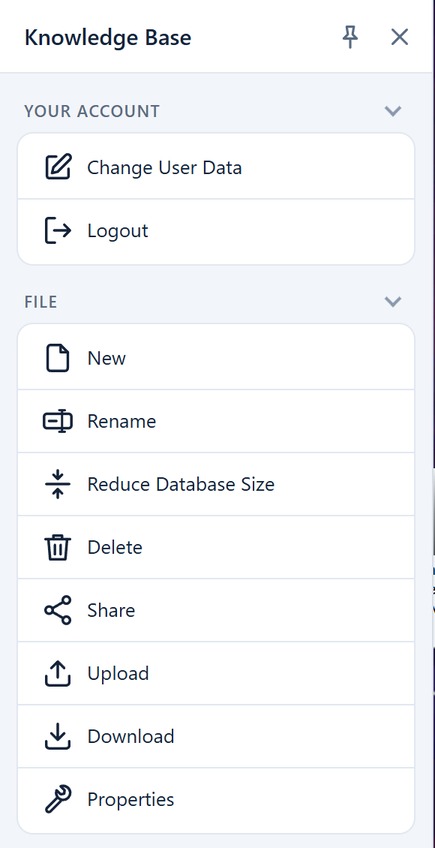
☁️ Web Version & Cloud Management
If you use the free web version at inforapid.org, the menu differs and offers specific functions for online management:
Your Account
- Change User Data: Manage your online profile, your email address, and change your password here.
- Logout: Securely logs you out of the web application.
File (Web-specific)
In addition to the familiar commands (New, Open, Properties), the following are also available online:
- Rename / Delete: Allows renaming or completely deleting an online database on the server.
- Upload / Download: Since there is no automatic local storage in the web version, upload your local
.kdbfiles to the server here or secure online databases by regularly downloading them locally. Important note: Inactive online accounts (without login) are automatically deleted after 3 months along with all data. - Share: Generates a long, secret link (token) with which you can share your knowledge base with other people. You can choose whether the diagram is shared read-only, for editing, or for download/export. Note: To use this function, you must become an "Authorized User" for free. Doing so will display your registered address as an imprint (legal notice) in the diagram.
🕒 Last opened
- Last opened: Lists the databases you have recently worked on, so you can quickly access them again with just one click.
🔄 Import / Export
This submenu is the core for data exchange. Here you can export your knowledge into various formats or read external data structures into your mind map.
- Export as Text Document: Generates a formatted HTML document in outline form from your item names, descriptions, and notes, including a table of contents.
- Export as 3D Model: Exports your diagram as an interactive 3D model in
.glbformat. This model contains your assigned hyperlinks and can be seamlessly embedded into your own website via the HTML code snippet<model-viewer>, where visitors can interactively rotate and click it. - Export CSV Data: Exports the contents of your mind map as structured values into a CSV file, which can be further processed in Microsoft Excel, for example.
- Export JSON Data: Saves your diagram data in machine-readable JSON format.
- Options: You can toggle Export Item Notes and Export as Plain Text (strips HTML formatting).
- Update Preview: Click Update Preview to inspect the JSON directly in the dialog's text area without needing to download a file.
- Import XML Data: Allows you to read structured XML data from external systems into your mind map and display it graphically.
- Import CSV Data: Reads table data in CSV format. The first row of the file serves as the definition for the item categories. Using special column headers such as
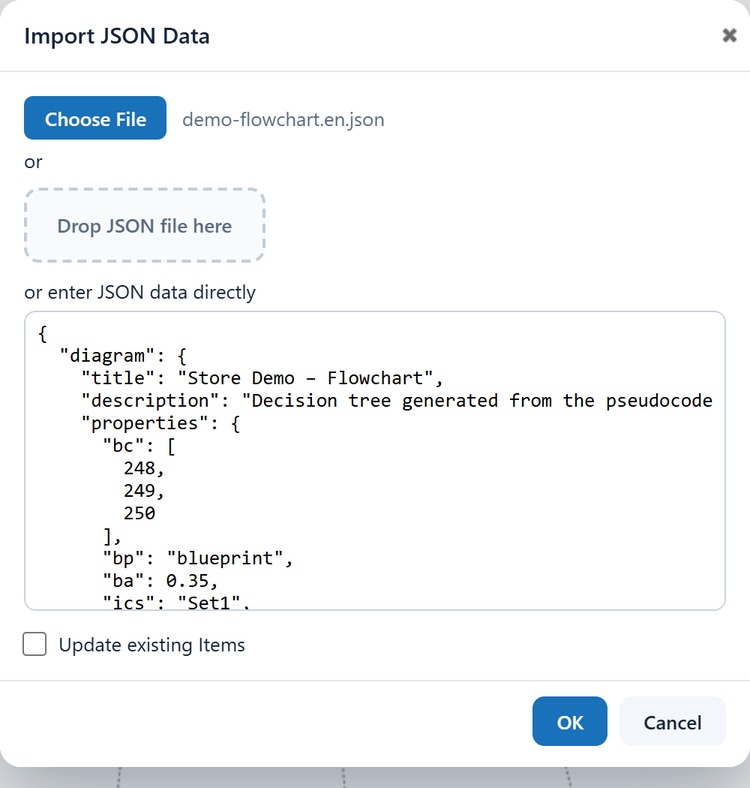
$itemdescription,$itemnote, or$itemurl, you can specifically map descriptions, notes, and hyperlinks automatically from the table. Relations (via$relationname,$relationdescription, etc.) can also be generated automatically this way. - Import JSON Data: Reads your diagram data in JSON format. You can select a
.jsonfile, drag-and-drop it, or paste JSON text directly into the text field.- Update existing items (Checkbox): When activated, items in the JSON that match existing nodes by name (
label) update their properties, notes, and descriptions in-place instead of creating duplicate nodes. - Important Note on In-Place Replacement: The update mechanism performs an in-place replacement of the node. If an existing item is updated but fields such as
descriptionornoteare omitted from the incoming JSON object, those properties will be cleared in the existing node (no partial deep-merge takes place). - Recommendation for Full Re-Imports (Re-creation Policy): When generating an entirely new knowledge diagram or performing a major restructuring via JSON, create a fresh, clean database beforehand. This guarantees that outdated or renamed nodes from earlier iterations do not linger as orphaned elements in your network.
- Links inside notes: The import takes notes (
note) over verbatim, but the items receive new IDs. Links of the formitemid://<id>are not rewritten and afterwards point to other items of the database. Create such links after the import via Insert Hyperlink in the notes window (see Notes on Item).
- Update existing items (Checkbox): When activated, items in the JSON that match existing nodes by name (
- Obsidian Vault Import: You can import an entire Obsidian vault (with all Markdown notes,
[[wikilinks]], tags, and attachments) directly into native.kdbformat. See the detailed Obsidian Import Guide.
📋 JSON Schema Reference
The JSON format used by InfoRapid KnowledgeBase Builder is structured as follows:
{
  "nodes": [
    {
      "id": 1,                       // Unique integer identifier
      "label": "Item Name",          // Node title (supports HTML & emojis)
      "description": "Tooltip text", // Optional tooltip / expanded text
      "note": "<p>HTML note</p>",    // Optional rich HTML note
      "url": "https://example.com",  // Optional hyperlink (itemid://71 or URL)
      "categoryId": 1,               // Optional category ID (or [catId, tag1, tag2])
      "properties": {                // Optional custom styling overrides
        "is": "hexagon",             // Shape: hexagon, circle, rect, rhomb, triangle, para, trapez
        "iw": 1.3,                   // Font size factor (0.6 to 1.6)
        "fn": "Arial",               // Font family name
        "ic": [74, 85, 226],         // Custom fill color [R, G, B]
        "tc": [255, 255, 255]        // Custom text color [R, G, B]
      }
    }
  ],
  "edges": [
    {
      "id": 1,                       // Unique integer identifier
      "source": 1,                   // Source node ID
      "target": 2,                   // Target node ID
      "label": "Forward label",      // Forward relation label (prefix "T:" for Table Relation)
      "description": "Description",  // Optional edge description
      "categoryId": 1                // Optional relation category ID
    }
  ],
  "nodeCategories": [                // List of node categories
    { "id": 1, "name": "Category Name", "properties": { "ic": [46, 204, 113] } }
  ],
  "edgeCategories": [                // List of relation categories (independent namespace)
    { "id": 1, "name": "Relation Category Name" }
  ],
  "diagram": {
    "properties": {
      "tv": 0,                       // 0 = 2D diagram, 2 = 3D view, 1 = Table view
      "dl": 0,                       // 2D Layout algorithm ID (0 to 18)
      "dl3d": 0,                     // 3D Layout ID (0 to 4, active when tv: 2)
      "ics": "Set1",                 // Color scheme name
      "irc": 0,                      // Invert relation colors (1 = on, 0 = off)
      "iex": 0,                      // Expand items (1 = on, 0 = off)
      "wtr": 1,                      // Show table relations as lines (1 = on, 0 = off)
      "swm": 1,                      // Shadows (1 = on, 0 = off)
      "cgm": 1,                      // Color gradient (1 = on, 0 = off)
      "lw": 2,                       // Line width (1 to 5)
      "bc": [255, 255, 255],         // Background color [R, G, B] - shared by the 2D and 3D view
      "bp": "perspective",           // Background pattern of the 2D view
      "bp3d": "starfield"            // Background of the 3D view (none, starfield, grid, image-from-root)
    }
  }
}
💡 Examples
To help new users get started and demonstrate the enormous versatility of the InfoRapid KnowledgeBase Builder, you will find a collection of pre-installed sample databases here. Simply click to open them and see the respective layout in action:
- Mind Map (Classic mind map structure)
- Error Analysis (Decision tree for troubleshooting)
- Mathematical Expressions (Demonstrates the integration of formulas via jqMath)
- Flowchart (Process flows and charts)
- Family Tree (Hierarchical family structures)