🛠️ Tools
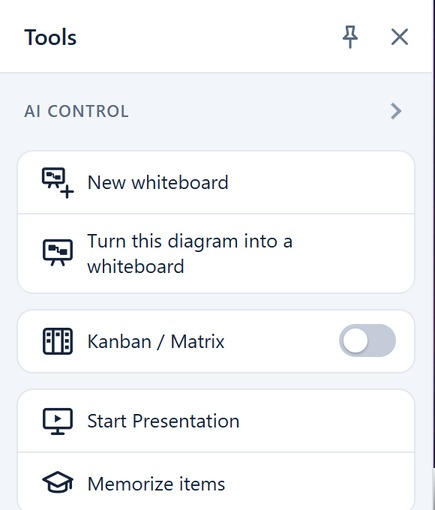
The Tools menu collects the working modes that take over the view and have their own way in and out. While they are active, they replace the normal handling of the diagram.
| Entry | What it is for |
|---|---|
| AI control section | Let an AI assistant build and edit your knowledge base — see AI Control |
| New whiteboard and the Whiteboards section | Whiteboards where you arrange the cards yourself — see Whiteboard |
| Kanban / Matrix and the Columns, Swimlanes, Cards sections | Agile Kanban and Scrum boards, axis configuration, ranking, and sprint handover — see Kanban / Matrix |
| Start Presentation | Automated guided tour through the diagram, with speech output — see Presentation Mode |
| Memorize Items | Flashcard trainer — see Memorize Items |
Note: The panel is always available. The whiteboard entries as well as the Hand Over Cards… command only appear in edit mode, because they write data. The Kanban / Matrix toggle, the axis sections (Columns, Swimlanes), the Show Rank option, as well as the Presentation and Memorize Items modes are also available while browsing. In 3D and table mode, as well as on an active whiteboard, the Kanban toggle is hidden.
🤖 AI Control
The AI control section lets an AI assistant on your computer work on the diagram for you: it creates items, connects them, searches and arranges the view while you watch. The feature is switched off out of the box, and the assistant only gets in after you confirm a four-digit pairing code.
It is available in the browser version, on macOS and — with developer tools — on Android. Setup and the exact steps for each device are on the AI Control page.
🗒️ Whiteboard
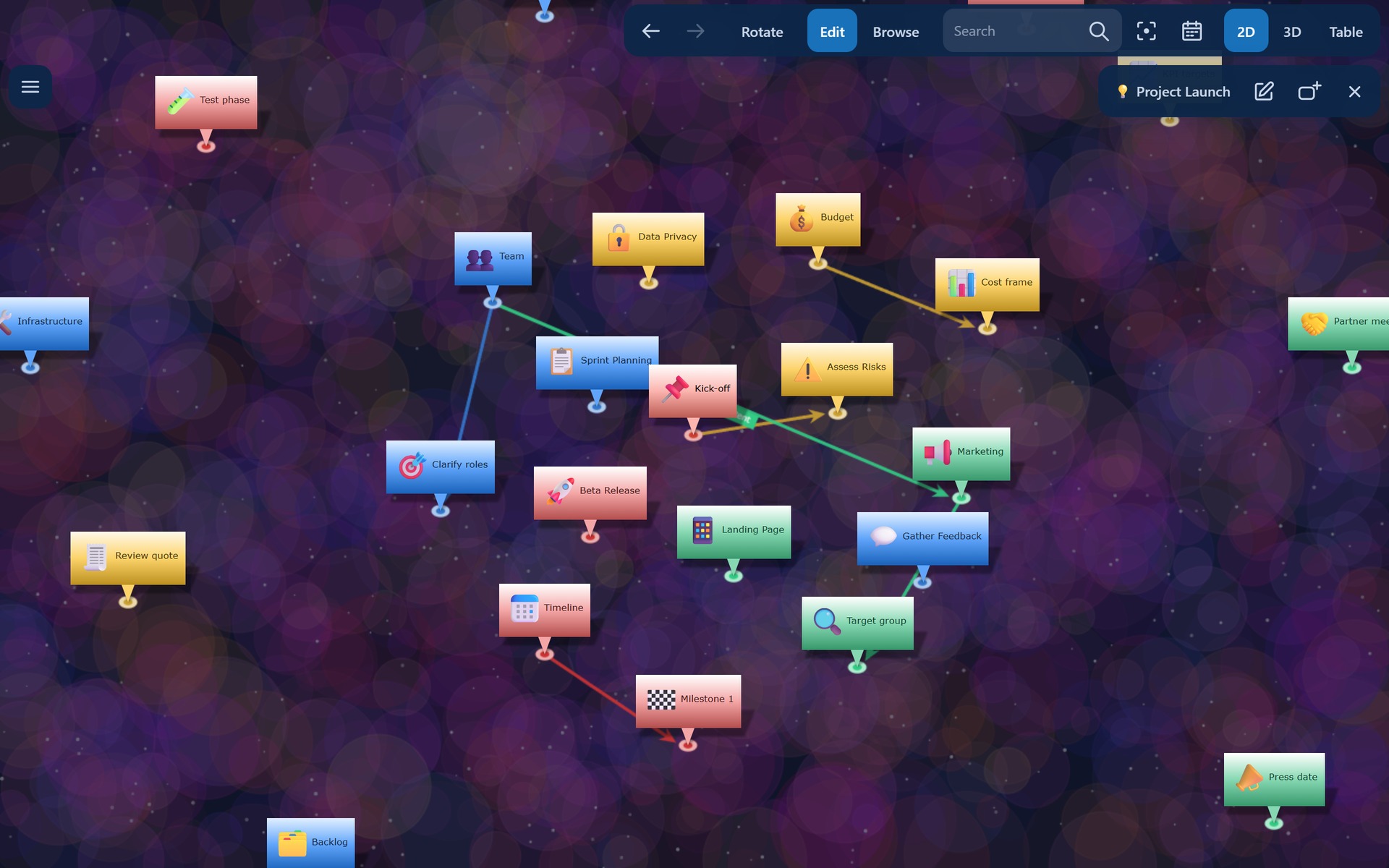
On a whiteboard, cards stay where you put them — meant as an intermediate step: collect first, then connect, then show as a diagram. You can keep several whiteboards: New whiteboard creates an empty one, Turn this diagram into a whiteboard makes one out of the diagram in front of you (the cards keep their position), and the Whiteboards section lists the existing ones. You leave through the × in the whiteboard toolbar (same whiteboard as a diagram) or through the back arrow next to it (back to the diagram you came from).
The detailed description is on the Whiteboard page.
📋 Kanban and Scrum Boards (Kanban / Matrix)
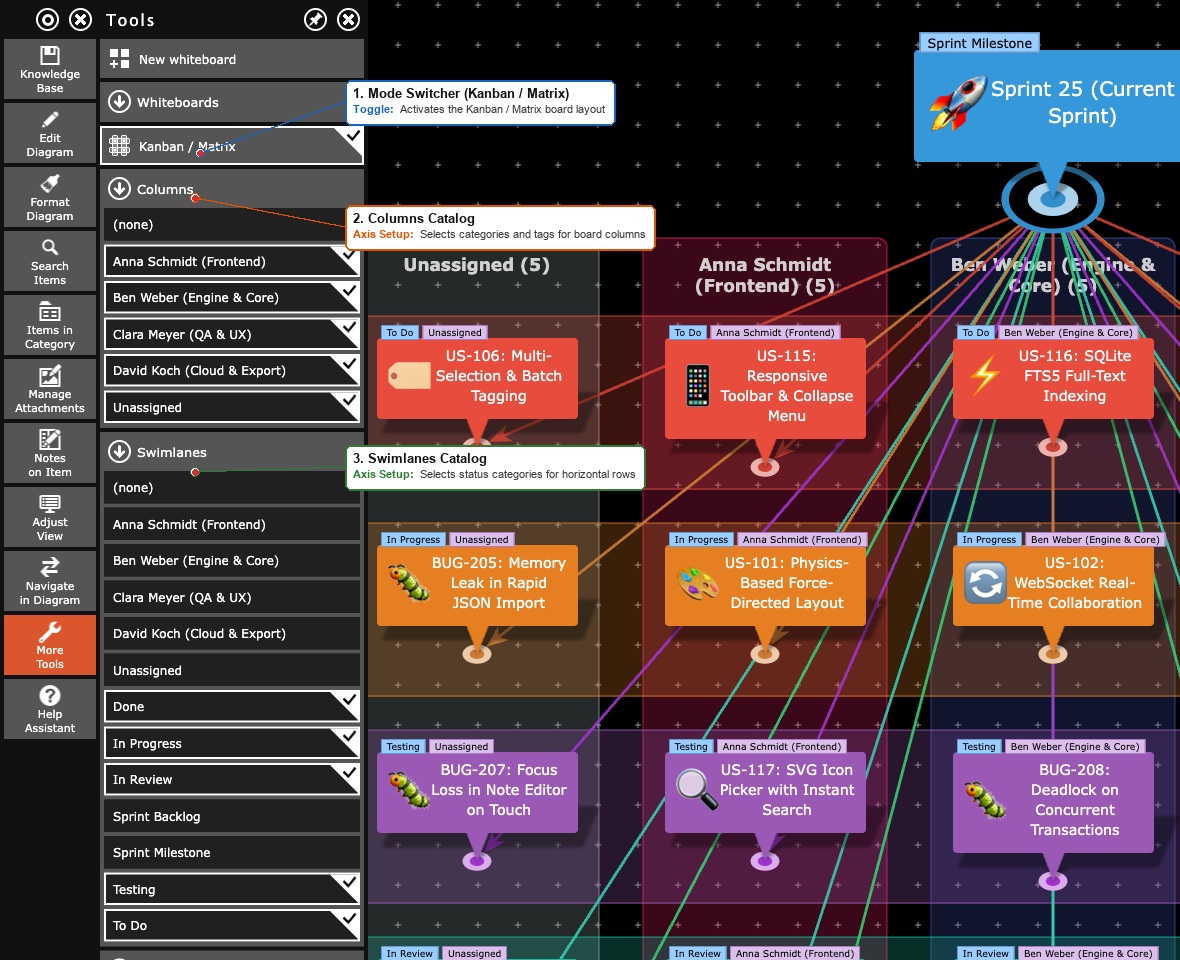
The Kanban / Matrix layout arranges the items connected to the current root item as an interactive board. While the layout can also be selected technically via the drop-down in Adjust View, the entire interactive workspace resides here in the Tools panel.
The Kanban / Matrix toggle in the Tools panel switches the board on and off; when switched off, the diagram automatically returns to the previously used layout.
As soon as the board is active, the Tools panel expands directly below the toggle with three dynamic sections:
- Columns: Lists all categories and tags of your database as well as the collecting value (none). Simply check or uncheck entries to choose which values are shown as columns on the board.
- Swimlanes: Allows you to configure horizontal rows (swimlanes) using the same selection criteria as for columns.
- Cards: Contains board-specific actions:
- Show Rank: Displays sequential numbering on the cards that visualizes their ranking (priority) within the cell or column.
- Show Category Labels: Displays colored category and tag badges directly above the cards.
- Hand Over Cards…: Opens the sprint handover dialog to keep finished cards on the old board and automatically transfer remaining cards to a new board (visible only in edit mode).
The detailed feature guide is on the Kanban / Matrix page, and a hands-on tutorial for running agile Scrum sprint cycles is available on the How-To: Kanban and Scrum Boards page.
📽️ Presentation Mode
This function is suited to meetings, lectures, or your own learning. It turns your network into an automated, guided tour. A click on Start Presentation initiates this mode.
Important note on controls: As soon as the presentation has started, the side menu is hidden. Instead, a new toolbar appears at the top right of your screen, from which you control the sequence:
- Previous / Next: With these arrow buttons you can manually jump one step backward or forward at any time.
- Pause Presentation / Start Presentation: The system automatically scrolls through the branches in a pleasant rhythm. A click on "Pause Presentation" pauses the automatic advance so that you can dwell on a specific item or explain something about it. The button then changes to "Start Presentation" — clicking it resumes the camera movement.
- Read out items: Activates your system's text-to-speech function. The app reads out the item name and the corresponding description text of the currently presented nodes.
- Close Presentation: Stops the mode, closes the upper toolbar and returns you to the normal view including the main menu.
The detailed documentation of all presentation controls, navigation rules, and narration options can be found on the Presentation Mode page.

🧠 Memorize Items
A click on Memorize Items opens the full-screen quiz mode, which uses item names and descriptions alternately as question and answer. The detailed description is on the Memorize Items page.