🤖 AI Control
With AI control you hand the work on your diagram over to an AI assistant. You describe in plain words what you want — "Build me an overview of the planets" or "Connect every customer to their projects" — and the knowledge base grows in front of you. The assistant creates items, connects them, searches, arranges the view and formats, while you watch.
The feature is switched off out of the box. You turn it on yourself, and the assistant only gets in once you have confirmed a four-digit code.
What the assistant may do — and what protects you
A connected assistant may do everything you may do: create, change and delete items. Three things protect you:
- The control stays off until you switch it on yourself.
- Without the pairing code nobody gets in — not even another program on your computer.
- Every step the assistant takes is one step for Undo. Anything you dislike is one click away from being reverted.
Switch the control off again when you do not need it. And make a backup of your database before you let an assistant near important data for the first time.
1. Does this work on my device?
| Device | AI control |
|---|---|
| 🌐 Browser version | ✅ yes |
| 🍎 macOS | ✅ yes |
| 🤖 Android | ⚙️ yes, but only with developer tools |
| 🪟 Windows (Microsoft Store) | ✅ yes |
| 🪟 Windows Professional Edition | ✅ yes |
| 📱 iPhone / iPad | ❌ no |
The reason is the same everywhere: the assistant talks to the app through a small helper program, and that has to run on a computer. Wherever it cannot run, or the device cannot reach the computer, the feature is not available.
2. One-time preparation on your computer
You do these two steps once. After that AI control is permanently available.
Step 1: Install Node.js
The helper program needs a foundation called Node.js. It is free.
- Go to nodejs.org.
- Download the version marked LTS — that is the recommended, stable one.
- Install it with the suggested settings. There is nothing to decide.
You will never see Node.js again afterwards; it works in the background.
Step 2: Register the helper program with your assistant
Your AI assistant needs to know that the KnowledgeBase Builder exists. You enter this in its settings. Using Claude Desktop as the example:
- Open Settings in Claude Desktop.
- Switch to Developer and click Edit Config. A text file opens.
-
Insert the following text. If the file is empty, take all of it:
{
  "mcpServers": {
    "kbb": {
      "command": "npx",
      "args": [
        "-y",
        "kbb-mcp-relay",
        "--allow-origin", "https://inforapid.org",
        "--allow-origin", "https://www.inforapid.org",
        "--allow-origin", "file://",
        "--allow-origin", "null"
      ]
    }
  }
}
If something is already there, insert only the block from
"kbb": {to its closing brace inside"mcpServers"— and make sure there is a comma between two entries. -
Save the file and restart Claude Desktop.
What are the --allow-origin lines for?
They tell the helper program which versions of the app are allowed to connect: the browser version (both spellings of the address), the Mac version and the Android version. Leave all the lines in place even if you only use one version — surplus entries do no harm.
If you use a different assistant, the procedure is the same — only its settings are named differently. You always enter the same command: npx with the arguments shown above.
3. Switching it on — the steps for your device
The assistant and the browser run on the same computer. Nothing else is needed.
- In the app, open the Tools menu on the left.
- Expand the AI control section.
- Switch Allow AI control on.
- A window appears and asks for a pairing code. Ask your assistant for it — it will name four digits. Enter them and confirm with OK.
Done. The status line now reads Connected to 127.0.0.1:8765.
The assistant and the app run on the same Mac. Nothing else is needed.
- In the app, open the Tools menu on the left.
- Expand the AI control section.
- Switch Allow AI control on.
- A window appears and asks for a pairing code. Ask your assistant for it — it will name four digits. Enter them and confirm with OK.
Done. The status line now reads Connected to 127.0.0.1:8765.
Developer tools required
On Android the app and the assistant live on different devices — the app on the phone, the assistant on the computer. For the two to talk to each other you need a USB connection and a tool called adb from the Android developer package.
This is not a quick side task. If you have never dealt with it, you are better off using AI control in the browser or Mac version.
On the computer, once:
- Download the SDK Platform Tools from the Android developer site and unpack the archive into a folder of your choice. They contain the
adbprogram.
On the phone, once:
- Open Settings → About phone and tap Build number seven times. This unlocks the developer options.
- Open Settings → System → Developer options and switch USB debugging on.
Every session:
- Connect the phone to the computer with a USB cable. A prompt appears on the phone — confirm it.
-
On the computer, open a command prompt in the Platform Tools folder and enter:
adb reverse tcp:8765 tcp:8765This command connects phone and computer. It has to be entered again every time the cable has been unplugged.
-
In the app, open Tools → AI control, switch Allow AI control on and enter the pairing code your assistant gives you.
Applies to both editions — the one from the Microsoft Store and the Professional Edition. The assistant and the app run on the same computer, nothing else is needed.
- In the app, open the Tools menu on the left.
- Expand the AI control section.
- Switch Allow AI control on.
- A window appears and asks for a pairing code. Ask your assistant for it — it will name four digits. Enter them and confirm with OK.
Done. The status line then shows a folder instead of an address: LocalState\agent for the Store edition, KnowledgeBaseBuilder\agent for the Professional Edition.
Why a folder appears here instead of an address
For technical reasons neither Windows edition can talk to a helper program on the same machine over the network — in the Store edition a Windows security rule forbids it, and the Professional Edition's built-in display component lacks the necessary piece. Both therefore communicate through a folder. Nothing changes for you: it works just the same, only the status line shows a folder, and the Relay address field is not there.
AI control is not available on iPhone and iPad.
The helper program the assistant talks through cannot be run on iOS, so it would have to join in over Wi-Fi from a computer. Since you would need a computer anyway, it is simpler and safer to use AI control right there — in the browser or Mac version.
4. How to tell that it is working
Open Tools → AI control. The status line tells you where you stand:
| Display | Meaning |
|---|---|
| Switched off | The control is off. Nobody can connect. |
| Waiting for the relay ... | The control is on, but the assistant is not running or has not been set up. Check point 2. |
| Connected to 127.0.0.1:8765 | All set. The assistant can work. In the Windows editions a folder appears there instead of the address — that is equally correct. |
Ask your assistant for something small as a test, for example: "How many items does my knowledge base contain?" If a sensible answer comes back, the connection is up.
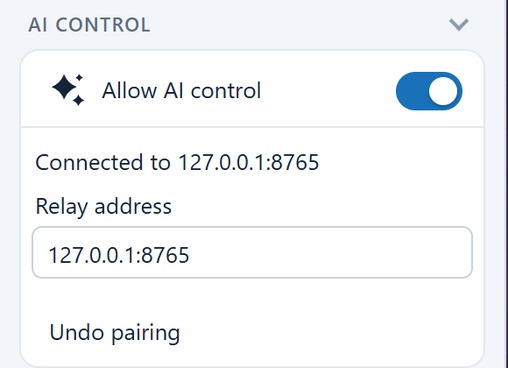
5. The entries in the section
| Entry | What it is for |
|---|---|
| Allow AI control | The main switch. On = the assistant may connect. Off = the connection is closed. The pairing you granted stays in place, so you do not have to confirm it again every time. |
| Status line | Shows whether and to what the app is connected (see above). |
| Relay address | Where the helper program can be found. The default is 127.0.0.1:8765, meaning "on this computer" — which is almost always right. Only change it if you know why. In the Windows editions this entry is absent, because a folder takes the place of the address there and nothing needs setting. |
| Undo pairing | Revokes your consent. The next time you switch on, the app asks for the code again. The entry only appears when a pairing exists. |
6. If something does not work
| What you see | Likely cause |
|---|---|
| The AI control section is missing from the Tools menu | Your version of the app does not support the feature — see point 1. |
| The display stays on Waiting for the relay ... | The assistant is not running, or the entry from point 2 is missing or has a typo. Restart the assistant. |
| No pairing window appears | You are already paired — or another version of the app is currently connected. Only one app can be paired at a time. |
| The code is not accepted | The assistant creates a new code every time it starts. Ask it for the code again. |
| The assistant answers but nothing happens in the diagram | Check that the status line really says Connected — and that you have the right database open in the app. |
| On Android nothing works any more | Was the USB cable unplugged? Then enter adb reverse tcp:8765 tcp:8765 again. |
Only one app at a time
The helper program serves exactly one app. If you want to switch between the browser and the Android version, first switch Allow AI control off in one, then on in the other.