📋 Kanban / Matrix
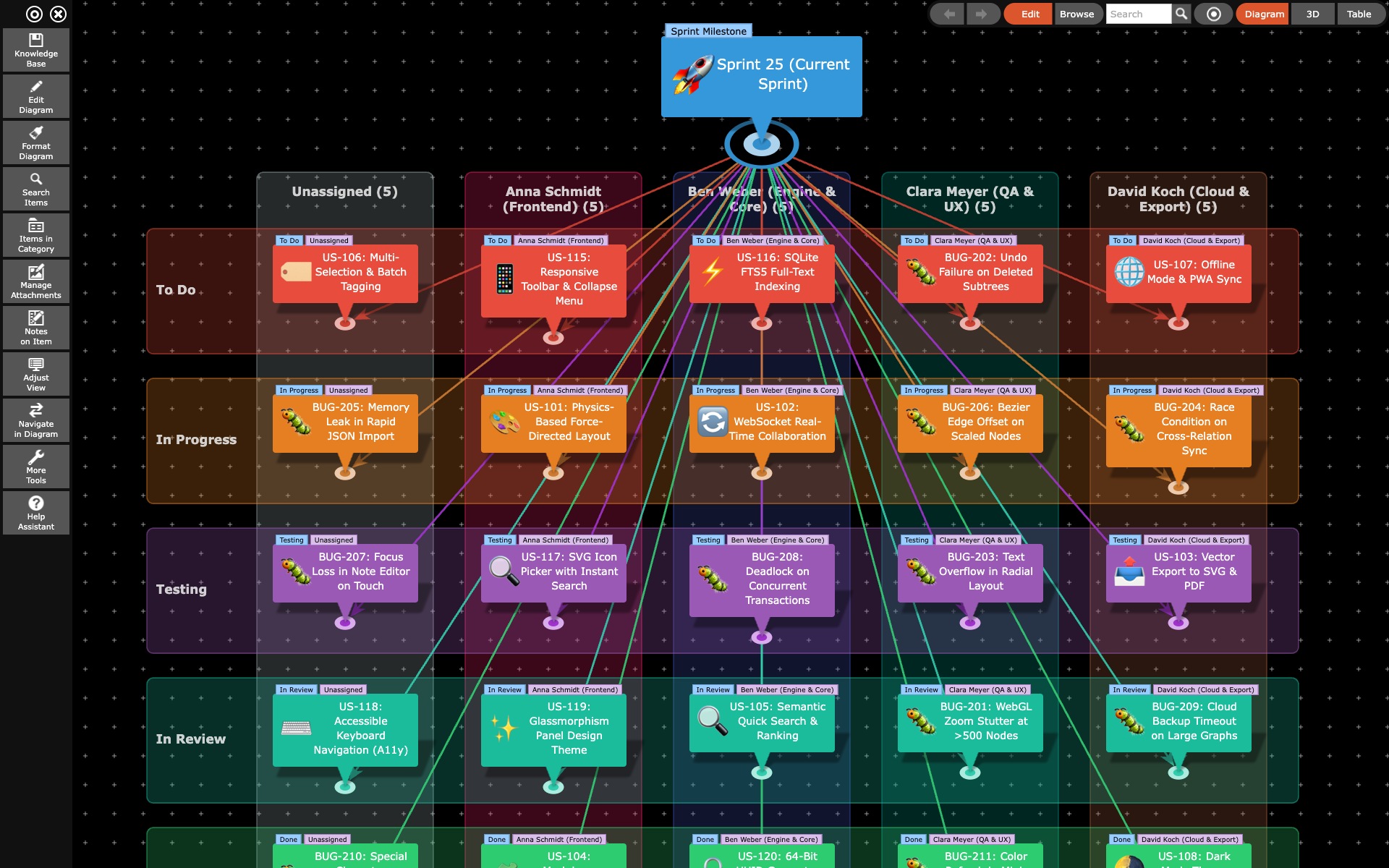
The Kanban / Matrix layout arranges the items connected to the current root item as an interactive board. Unlike isolated Kanban tools, cards in KnowledgeBase Builder are full-fledged nodes in your knowledge base: each card remains connected with its requirements, notes, attachments, and cross-connections in the network.
🚪 Switching the Board On and Off
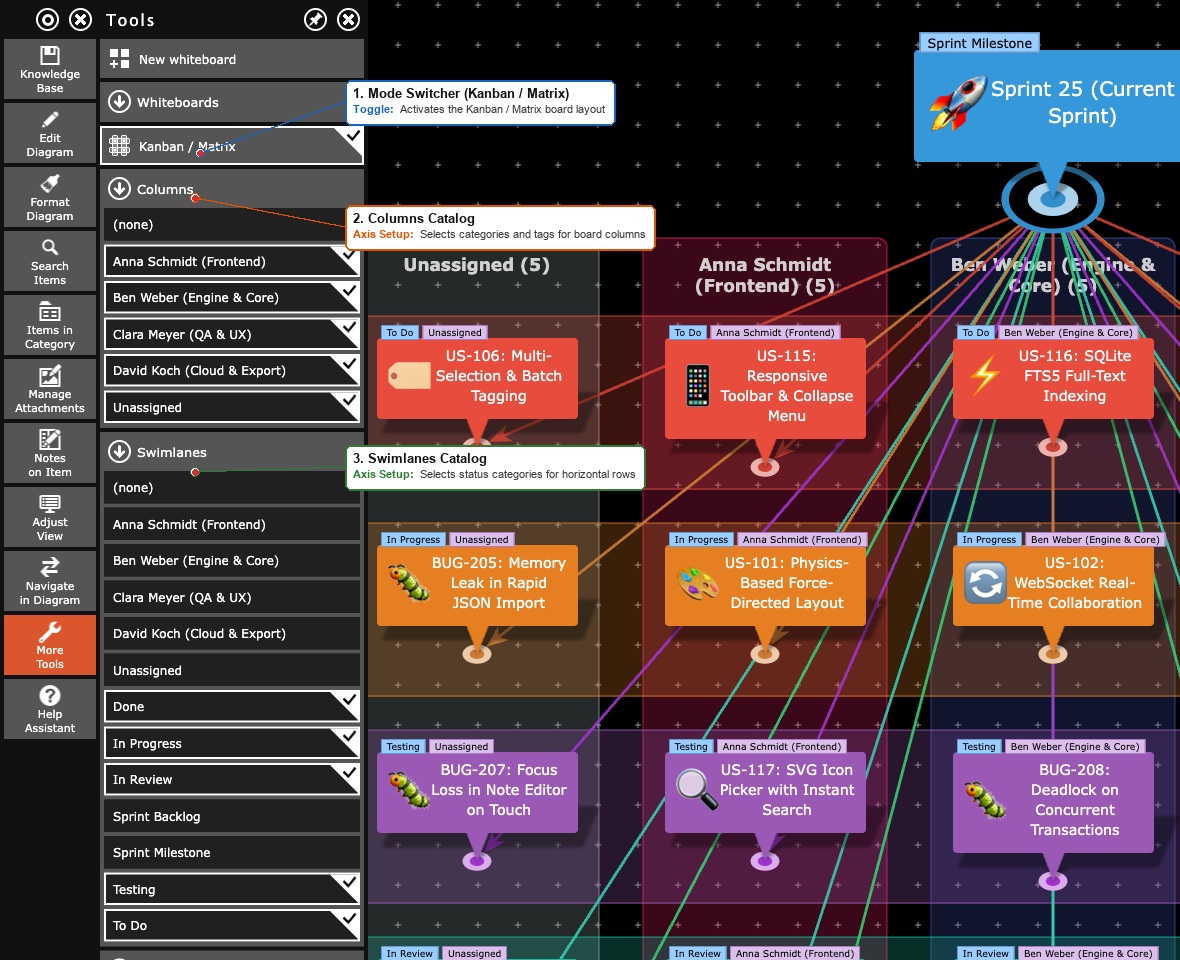
The primary access point for the board is located in the Tools menu:
- Kanban / Matrix — This toggle activates the board view. Clicking it again turns the board off and automatically returns you to the diagram layout that was set previously.
- Alternative via “Adjust View”: You can also select the Kanban / Matrix layout from the drop-down menu of 20 layouts in Adjust View. However, the interactive workspace containing all axes and board options is located in the Tools panel.
Note: The Kanban toggle is hidden in 3D and table mode, as well as on an active whiteboard.
📊 Configuring Axes: Columns and Swimlanes
As soon as the board is active, the sections for both axes appear in the Tools menu directly below the toggle:
- Columns: Lists all categories and tags in your knowledge base. Simply check or uncheck entries to define which values are displayed as vertical columns on the board.
- Swimlanes: Allows you to select horizontal rows using the same criteria as for columns. This creates a two-dimensional matrix (e.g., Eisenhower matrix, risk matrix, or effort/benefit grid).
- (none): Sits at the top of both axes and serves as the collecting area for all cards that do not carry any of the selected values.
🃏 The “Cards” Section
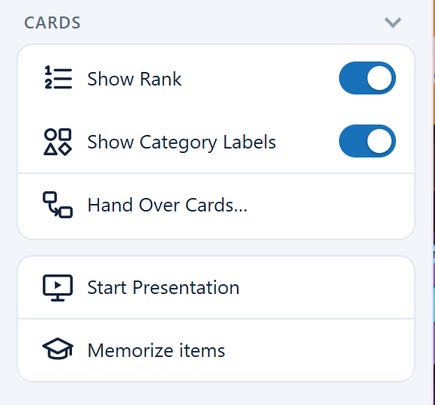
Below the axes you will find the Cards section containing board-specific commands:
- Show Rank: Puts a small number on every card, counted sequentially from top to bottom (across swimlanes). This immediately reveals the priority and ordering within a column or cell.
- Show Category Labels: Displays colored category badges (blue) and tag badges (purple) directly above the cards.
- Hand Over Cards…: Opens the sprint handover dialog (visible only in edit mode) to retain finished tasks on the old board and automatically transfer remaining cards to a new board.
🎛️ Working Directly on the Diagram
You can interact with the board directly:
- Re-filing Cards via Drag & Drop: Drag a card with the mouse into another column or swimlane. Dragging automatically updates the card's category or tag (not its physical coordinate).
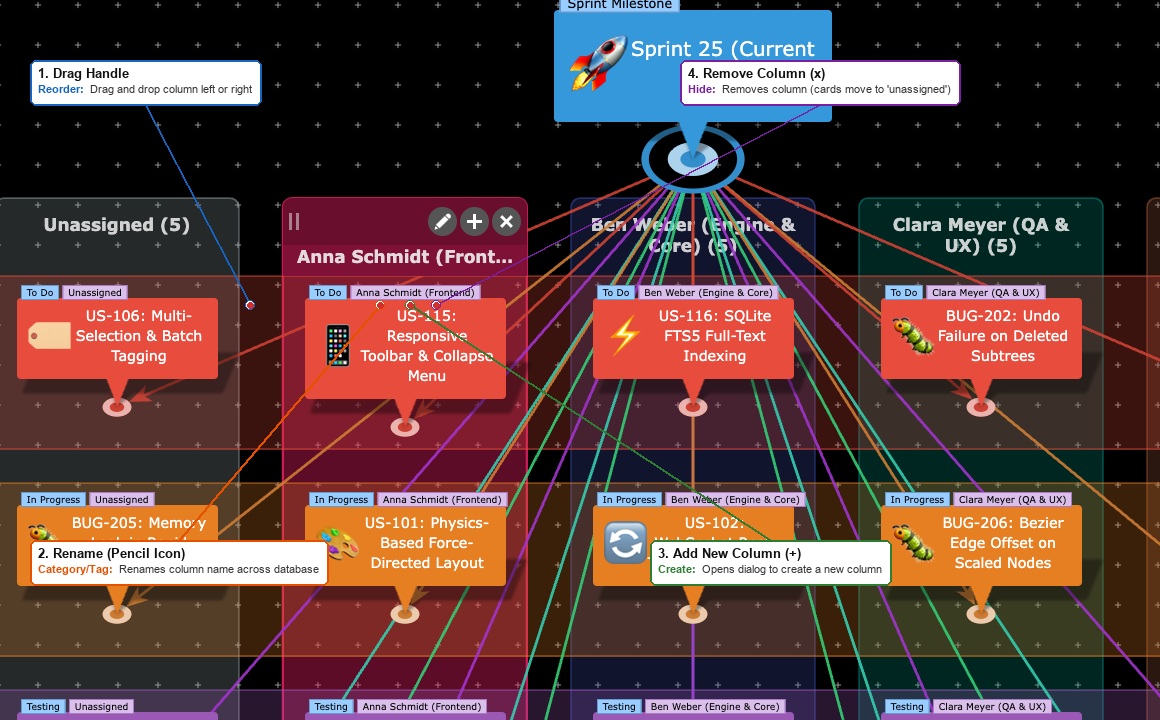
- Column and Swimlane Toolbar: Clicking the header of a column or swimlane reveals its toolbar:
- Grip: Drag the column left or right to reorder columns.
- ✎ Rename: Changes the name of the category or tag throughout the database.
- ➕ Add Column / Swimlane: Inserts a new column to the right or a new swimlane below.
- ✕ Remove: Hides the column from the board. Its cards retain their category and move into the collecting column (none).
- No Diagram Rotation: On the board, rotation angle, rotation speed, and the Rotate button are disabled.
📖 Related Tutorial
For a detailed, step-by-step guide on practical Scrum sprints, backlogs, and matrix use cases, please visit the How-To: Kanban and Scrum Boards tutorial.