📋 How-To: Kanban and Scrum Boards
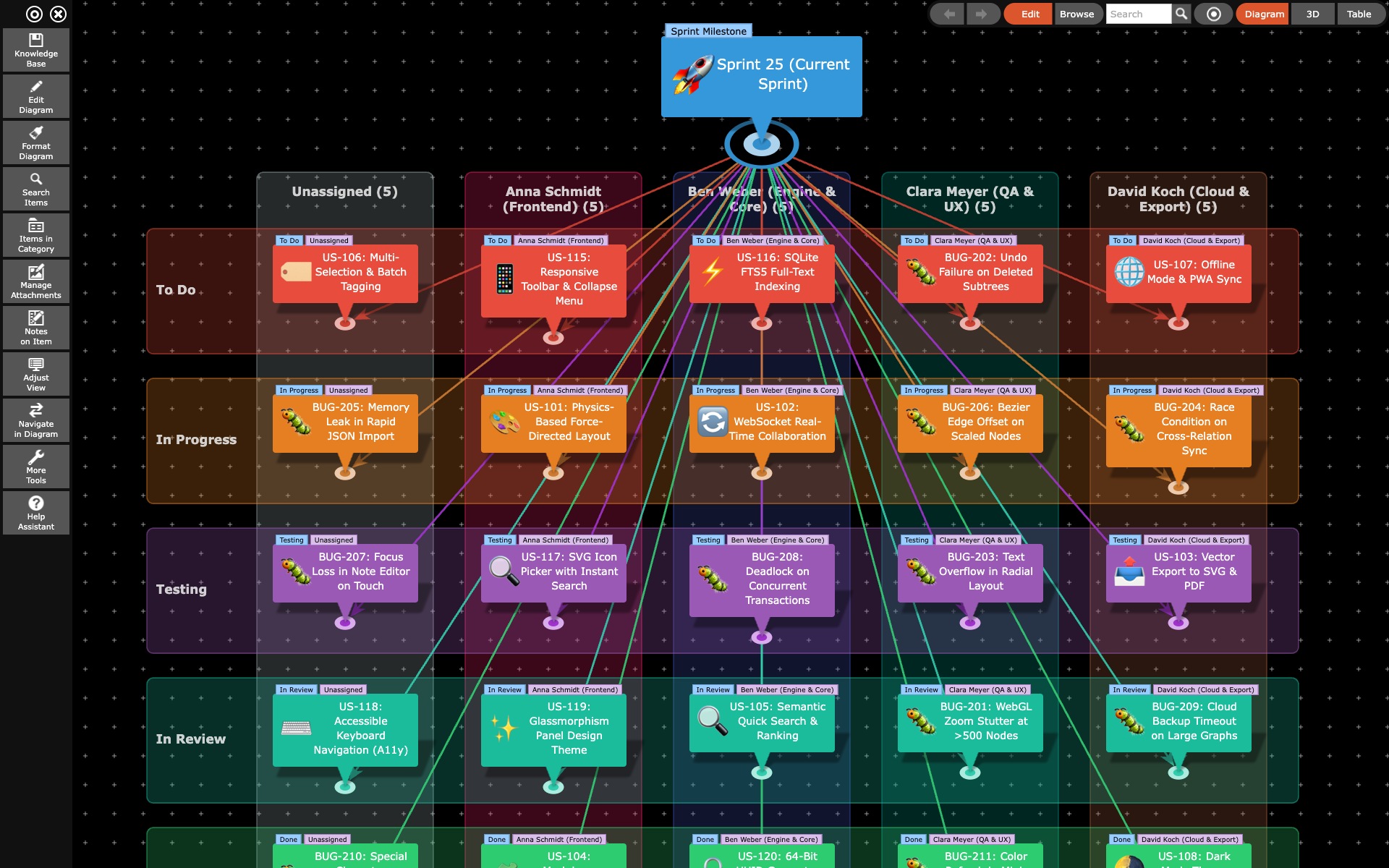
The layout Kanban / Matrix turns a section of your knowledge base into a board: the columns stand for the values of one attribute, and the rows (“swimlanes”) optionally for a second one. Depending on the attributes, the same arrangement becomes a sprint board, an Eisenhower matrix or an editorial plan.
The decisive difference to an ordinary Kanban tool: your cards are not slips of paper in a column, they are elements of your knowledge base. The very task lying here as a card is connected in the network to its requirement, its customer and its documentation. The board is a view onto that data, not a data store of its own.
⚠️ Prerequisite: Reordering, renaming and handing over require edit mode. Looking and browsing always works.
🧩 The model in three sentences
- A card is an element connected to the root element of the board. The root element stands as the heading above the board and is not a card itself.
- A column or swimlane is a name. A card sits there if its category has that name or it carries the tag of that name.
- Dragging is not moving but re-filing. Dragging a card into another column changes its attribute.
Everything else follows from this. There is no card position that gets stored, and no column that “contains” anything. The board only shows what is in your data anyway.
🚀 A board in five minutes
- Create the root element. One element naming the stretch of work: “Sprint 12”, “Q3 2026”, “Editorial plan April”. It becomes the heading of the board.
- Attach the tasks. Every task as its own element, connected to the root element. The quickest way is Edit diagram → New item while the root element is selected.
- Assign the attributes. Give the tasks a category (“To-Do”, “In progress”, “Done”) and, if you want a second axis, tags (“Team A”, “Anna”, “Frontend”). Both in the properties dialog under Category.
- Switch the board on. Menu Tools → Kanban / Matrix. You immediately see a board whose columns are built from the categories in your section. The same toggle leads back out later, to the layout that was set before.
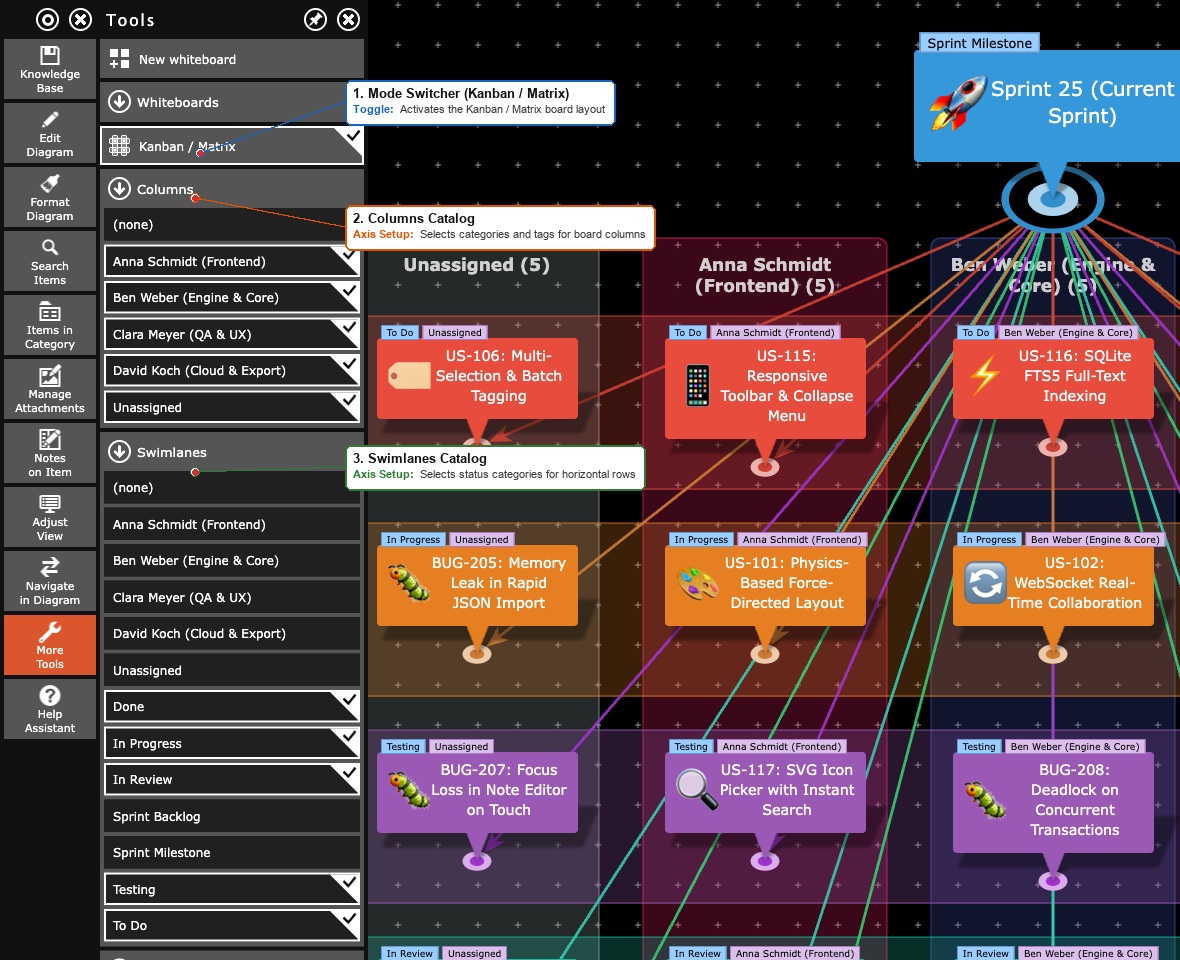
- Set up the axes. Directly below Layout sit the two sections Columns and Swimlanes. Switch on what you want to see.
From here on you work on the board: drag cards, reorder columns, hand cards over.
🧭 Deciding on columns and swimlanes
An axis is an ordered list of names. Categories and tags share one vocabulary in this application, and you simply pick names. Whether “To-Do” is a category or a tag on your elements need not concern you.
As long as you decide nothing, the board builds its columns from the categories that actually occur in the current section, in the order in which you created them, followed by (none). Swimlanes appear only once you pick some. As soon as you touch an axis, it is yours, and the board no longer proposes anything of its own accord.
The two sections in the view panel
You pick in the sections Columns and Swimlanes, which appear in the Tools menu directly below the Kanban / Matrix toggle. They work like the item category filter: each lists all names in your database, categories as well as tags, the same choice on both axes. The ones switched on form the axis.
The list is a catalogue to pick from and always stands in the same order: (none) at the very top, then for the columns the categories first and the tags after them, for the swimlanes the other way round, each alphabetically. Names that occur in the section in neither role come last. The order on the board is something you set in the diagram, not here.
A value newly switched on goes to the end of its axis, so a column you add appears at the far right. Move it into place afterwards with the grip of its bar (see below).
The (none) column
(none) is an axis value like any other: movable, removable, and you can take it back. It collects every element that carries none of the chosen values.
Take (none) out and those elements disappear from the board. You then see only what fits your scheme. Your data is not affected, the elements are still there, just not on this board.
Only one axis carries the category
An element has exactly one category. With categories on both axes there would be cells no card could ever belong in. So as soon as one axis contains a category, the other one offers tags only; if both would qualify, the columns win. Take the categories off the one axis again and the other one is free to choose once more.
In practice: columns are the status (a category), swimlanes are responsibility or topic (tags). An element has one status, but it can concern two teams.
🖐️ Working with columns and swimlanes in the diagram
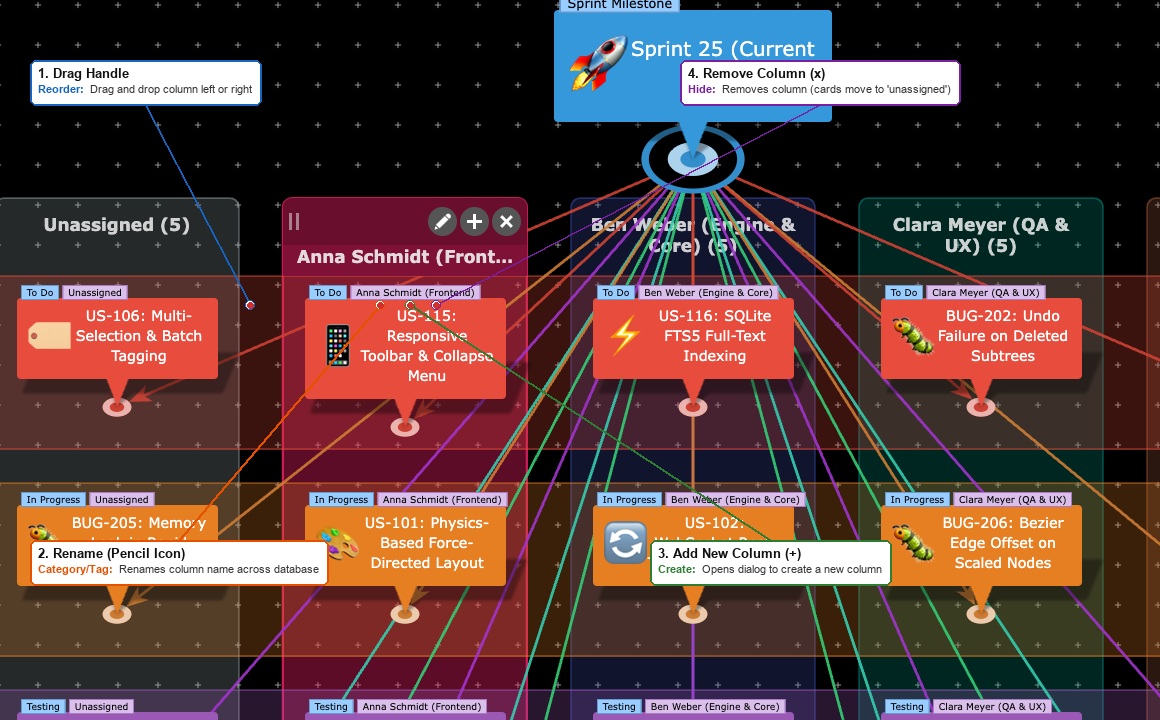
Clicking a column or a swimlane selects it. Its head then becomes the toolbar: it takes on the colour of the column, puts a grip and the buttons ✎, ➕ and ✕ at the top and still carries its name and card count below them. The upper part is slightly shaded so that the row of buttons reads as one unit. The same happens in the label column of a swimlane. A click on the diagram background or on a card clears the selection again.
While browsing, neither grip nor buttons appear: the head then looks as it always does, because nothing can be changed there.
| Control | Effect |
|---|---|
| Grip | Drags the column left or right, the swimlane up or down. A semi-transparent image follows the pointer and shows where it will land. The whole header works as a handle just as well. |
| ✎ Rename | Changes the name of the column and with it the name of the category or tag itself. Every element carrying it is named differently afterwards, not only the ones on this board. |
| ➕ New column / New swimlane | Appends a new one behind the selected one. |
| ✕ Remove | Takes the column out of the view. The cards keep their category and afterwards sit under (none). |
For (none) the rename button is missing: this column carries no name, it collects what is left over.
Long names wrap, in the column head as well as in the label column of the swimlanes: up to three lines, and the head grows with them.
The selection and its toolbar belong to the operation, not to the diagram. They do not appear in a saved image or in print.
The dialog behind ➕
It has two fields, Category and Tag, and you fill exactly one; writing into one clears the other. Both work like the category field in the properties dialog: they propose existing names as you type, the arrow shows the whole list, and a new name works just as well. Whatever already sits on this axis is not offered.
Your choice determines what is written when you drag a card into that column: the card's category or a tag. For a name that does not exist yet, one or the other comes into existence as soon as you drag the first card in. If the other axis already carries the categories, only the tag field remains, and the dialog tells you why.
➕ Creating new cards
Double-click a free spot on the board and a card is created there. It receives the attributes of the cell you clicked into: the category of the column, the tag of the swimlane. It then sits exactly where you pointed. That is the same mechanism as dragging an existing card, just with a new one.
Edit diagram → New works as well, only without a target cell: the new card carries no attribute yet and therefore belongs to the column (none). If your board lacks that column, the application adds it by itself, because otherwise the card would be invisible the moment it comes into being. If you do not want (none), drag the card into its column afterwards and take (none) out again.
A card created by double-click brings its column and lane along, so (none) is not added for it. A double-click just beside the board also creates a card, in the nearest cell. The double-click on the background that otherwise fits the diagram to the window is therefore not available on the board; shrink it with the Zoom slider in the Adjust View menu.
🎯 Dragging cards
On the board, dragging is re-filing. Dragging a card into another column changes its attribute, and with swimlanes switched on the one of the row as well. Whether the category or a tag is written is settled when you set the axis up.
- Within a cell the height of the drop point determines the rank: let go above the middle of a card and the dragged one lands before it, below the middle after it. More on that in the next section.
- Drag a card into the (none) column and it loses the attribute.
- The whole drag is one entry in the undo stack, even when you drag several cards at once.
- With Show Category Labels (Adjust View menu → Labels, also in the Cards section of the Tools menu) every card shows its category and each of its tags above it. After a drag you see what was written, and why a card sits in its cell.
- The board does not read the Status field on the Dates tab, and a drag does not change it. Columns and lanes come from categories and tags only.
The board does not rotate
Rotation, Rotation speed and the Rotate button are hidden in this layout. A board standing at an angle would no longer be one.
🔢 Rank: the order within the column
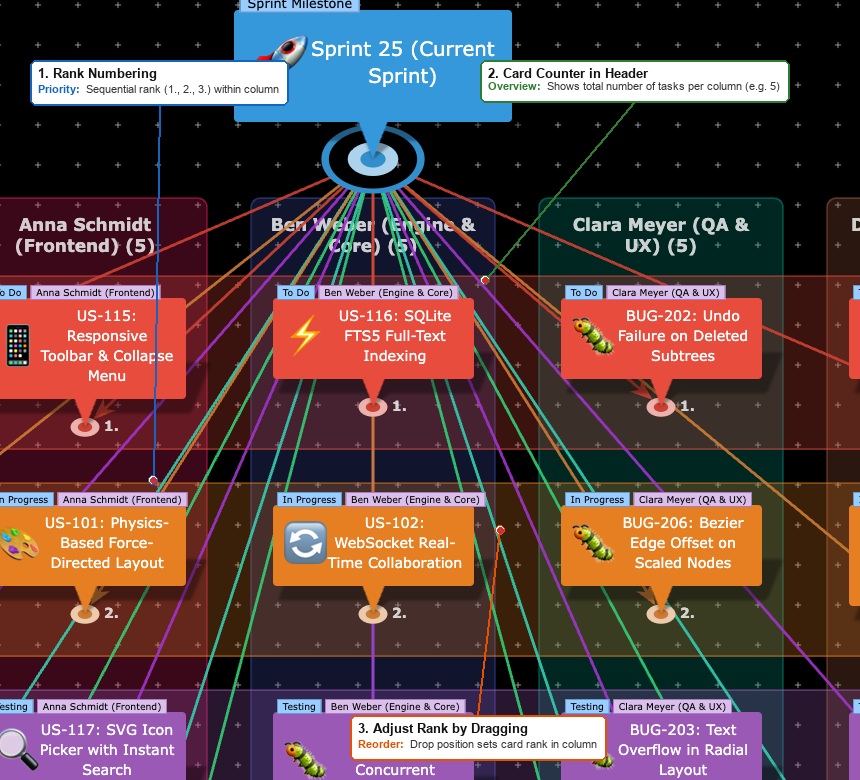
The order of the cards in a column is their rank, and it is more than decoration: it is the sequence number of the relation from the root element to the card. Three things follow from that, and a backlog needs all three.
There is only one order. The same number sorts the rows in the table view and the siblings in the hierarchical layouts. So you can drag on the board or in the table view, and both show the same afterwards. For long lists the table view is the more comfortable workshop.
Every board has its own rank. Because the number belongs to the relation and not to the element, the same story can sit at position 7 in the backlog and at position 2 in the sprint. Neither disturbs the other.
The rank can be shown. The switch Show rank in the Tools menu puts a small number on every card, counted from top to bottom and across the swimlanes. That turns the column into a visible ranked list. The switch belongs to the view and travels with Save view.
The head of every column also names the number of its cards, for instance “Backlog (37)”. That is the piece of information you need most often on a board, and it costs no line of space.
🙈 Elements that are not cards
More than tasks tend to hang off the root element: the project above it, a finished predecessor, a note on how you work. On the board those would be cards like any other and would sit in the way under (none).
The command Hide item takes them off the board. They are not drawn, not even under (none), and their connecting lines go with them. In the database, in the table view and in the other layouts they remain, drawn faintly as usual. Show item brings them back.
The command sits in the Adjust view menu in the section Item category filter as the switch Hide on click: switch it on, click the elements in question, then end it through the bar that stands in the top right meanwhile. It sits there and not among the board commands because it hides elements, not cards: whatever you hide with it is hidden in the other layouts as well.
Whatever hangs behind a hidden element is gone as well
The board computes reachability from the root element, and a hidden element does not pass the path on. That is exactly what the sprint change lives on: the old board stays connected to the new one, but its finished cards do not clutter the new board.
🔄 Sprint change: handing cards over
A board fills up and the stretch of work ends: the sprint is over, the month turns, the wave is through. What is finished should stay behind, everything else moves on.
For that the Tools menu holds the command Hand over cards… in the section Cards. The dialog asks four things:
| Field | Meaning |
|---|---|
| New board | Name of the new root element. Proposed is the old name with the number at its end raised by one, so “Sprint 12” becomes “Sprint 13”. You can just as well pick an existing element. |
| These columns stay behind | The last column is ticked to begin with, because work travels to the right on a board – unless it is (none): then nothing is ticked, and without your tick every card moves. The cards of every other column move. |
| Keep the cards on the old board | Turns the handover into a take-over: the cards stay on the old board and are added to the new one. That is the way from the backlog into the sprint. |
| Do not show the boards as cards | Marks both root elements as hidden, so neither board sits on the other as a card. On a take-over only the new board is hidden, because the old one stays in use. An existing element you picked is left untouched. |
| Switch to the new board | Loads the new board right away. |
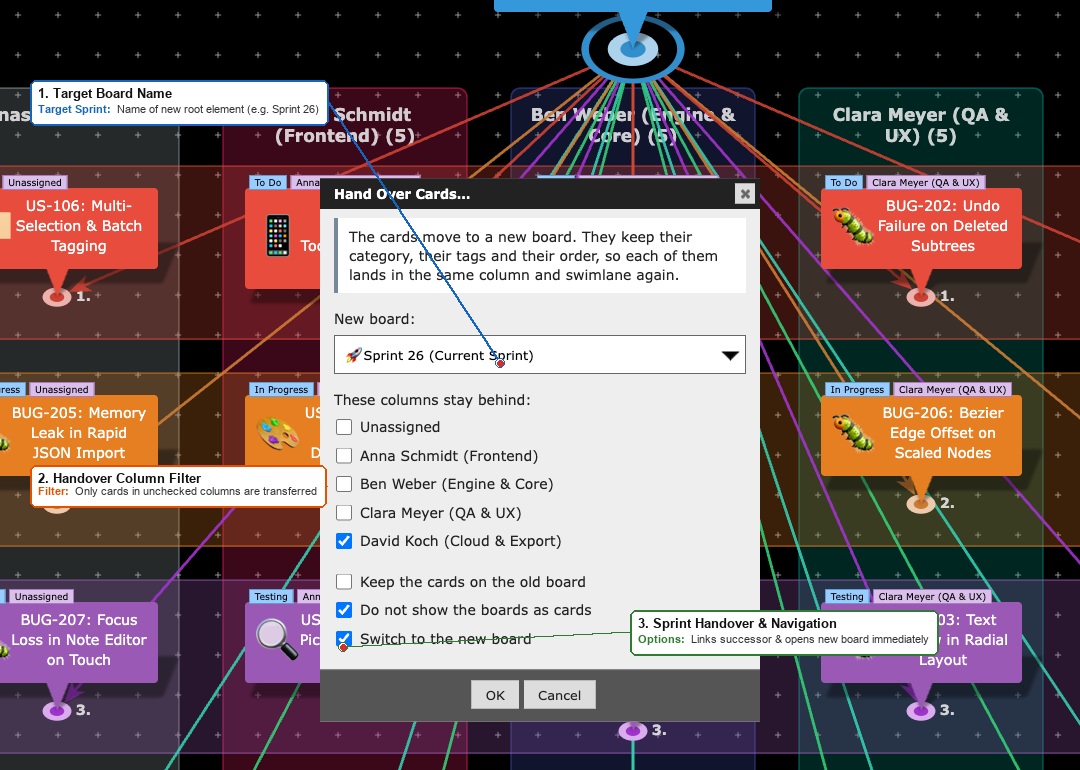
What happens:
- Every moving card gets the same relation to the new root element that it had to the old one; the old relation is removed. Direction, caption and category of the relation are preserved.
- Category, tags and order of the card are left untouched. On the new board it therefore lands in the same column and swimlane again. The axes are the same too, because they belong to the database and not to the root element.
- The two boards stay chained by a relation Successor. In the network and in the table the history remains walkable at any time.
- Subtasks travel with their card, since they hang off the card and not off the board.
- The whole handover is one entry in the undo stack.
On a take-over two things are left out: the old relation stays, and the chain Successor is not created. A sprint does not follow on the backlog, and the two boards are held together by their shared cards anyway.
Back to the old board you get via the back arrow at the top right, via the search or via the relation Successor in the network view.
The new board hangs off the old one only
If your sprints are filed under a project element, hang the new board there yourself. The application does not do it automatically, because it cannot tell a predecessor chain from a filing.
🏉 A complete Scrum cycle
This is how the rhythm of a Scrum team maps onto the app without leaving the knowledge base.
1. The backlog. Create an element “Product backlog” and attach every requirement to it. Categories such as “Idea”, “Refined”, “Ready” form the columns. The backlog is a board in its own right, and the order within its columns is the priority: switch Show rank on and it stands on every card.
2. Sprint planning. Sort the backlog until what comes next is on top. Then call Hand over cards… on the backlog board, enter “Sprint 12” as the new board, tick Keep the cards on the old board and leave every column except “Ready” behind. The chosen requirements then sit on both boards, and rightly so: a requirement belongs to the backlog and to the sprint in which it is worked on.
3. The sprint board. With the sprint as root element, switch to the Kanban layout. Columns: “To-Do”, “In progress”, “Review”, “Done”. Swimlanes: the tags of your team members. Hide the backlog element with Hide on click so that it does not sit on the board as a card.
4. Daily. Everyone drags their cards one column further. Interim results belong in the Notes on item, there is room for minutes, checklists and tables.
5. Review. Save the board as an image (Edit diagram → Save as image) or show it directly. Toolbars and selection frames do not appear in the image.
6. Sprint change. Hand over cards…, new board “Sprint 13”, the column “Done” stays behind. That is all. Sprint 12 keeps its finished cards as the record of what got done in it.
7. Retrospective. Create an element “Retro sprint 12”, attach it to the sprint and write the results into the notes. At the next sprint change it stays with its sprint.
🗂️ Further use cases
The same board, different attributes:
| Use case | Columns | Swimlanes |
|---|---|---|
| Eisenhower matrix | “Urgent”, “Not urgent” | “Important”, “Not important” |
| Effort/benefit grid | “Small effort”, “Large effort” | “High benefit”, “Low benefit” |
| Editorial plan | “Idea”, “Research”, “Draft”, “Published” | Channels as tags |
| Support triage | “New”, “In progress”, “Waiting for customer”, “Solved” | Products as tags |
| Risk matrix | Probability of occurrence | Extent of damage |
| Staff planning | Weeks or calendar weeks | Staff as tags |
| Teaching planning | “Prepared”, “Held”, “Followed up” | Classes or subjects |
For anything that has no fixed assignment and should simply lie where you put it, the Whiteboard is the better place. There you determine the arrangement, and nothing moves on its own.
💾 Two boards from the same cards
The whole setting belongs to Save view: the chosen values of both axes and their order. Create a view “Status board” (columns = status) and a view “Effort/benefit” (columns = effort, swimlanes = benefit) and switch between them with one click. The same cards, two points of view.
⚠️ Limits and pitfalls
- The board shows a section. As everywhere in the app, Max. number of visible items (menu Adjust view) limits how many cards are loaded. Raise that value for large sprints.
- Cross connections pull in foreign elements. If a card is connected to an element outside the board, that element appears as another card. Remedies: hide the element, make the relation a table relation, or limit Max. number of visible levels.
- Two cards of the same name cannot be told apart on the board. Give them speaking names. With Show Category Labels each card also shows its category and tags.
- There are no WIP limits and no time axis. The board does count its cards and writes the number into the column head, but it does not enforce a limit and forbids nothing.
- Renaming a column takes effect everywhere. It renames the category or the tag itself, not just the caption on this board.
- With lanes the board quickly grows taller than the window. If you drag a card past the edge, the board scrolls away under the pointer. Shrink it first with the Zoom slider, so that start and target are both in view.
📎 Related pages
- Adjust View: all settings of the menu that also holds the board layout
- Items in Category and Tags: where the names come from that become columns and swimlanes
- Whiteboard: free arrangement instead of an automatic one
- Project Management: dependencies, appointments and responsibilities around the board