🛠️ Frequently Asked Questions (FAQ) & Troubleshooting
Here you will find answers to the most frequently asked questions about the InfoRapid KnowledgeBase Builder as well as quick solutions for potential problems.
💡 General Questions (Purchase, Licenses & Versions)
Do I have to buy the app separately for each operating system?
Yes, the Apple, Google, and Microsoft App Stores are strictly separated and do not offer joint license management. A purchase in the Google Play Store, for example, does not entitle you to a free download in the Apple App Store. An exception applies to newer Macs with an Apple Silicon processor (e.g., M1, M2): Here you can often use the iOS version for free if you have already purchased it in the iOS App Store.
What is the difference between the Lite and the full version?
The free Lite version (only for Android) is limited to creating and editing exactly one single database file. Within this file, however, you can already create millions of items and test the full range of features. The paid full version removes this limitation, allowing you to manage an unlimited number of databases.
Is there a subscription or hidden costs?
No. The KnowledgeBase Builder is a fair, honest one-time purchase ("Pay Once"). There are no monthly or annual subscription fees whatsoever.
What is the difference between the Windows app from the store and the Professional Edition?
The Windows app from the Microsoft Store (approx. 10 Euros) is significantly cheaper and renders faster, as it is based on more modern technologies. The Professional Edition (99 Euros) is primarily aimed at companies, as it is multi-user capable and allows several users to work simultaneously on the same database. For individual users, the Windows app from the store is recommended.
Is there a native app version for Linux?
No, unfortunately there is no specific Linux app. However, under Linux, you can always use the free web version at inforapid.org directly in your browser.
How can I change the language of the app?
By default, the app adopts the system language set on your device (e.g., from Windows or Android). To change the app language, you must change the default language of your operating system and then restart the app.
🔄 Data Management, Cloud & Synchronization
How can I synchronize my database between different devices?
Save your .kdb database file manually in a cloud drive of your choice (e.g., Microsoft OneDrive, Google Drive, or iCloud). The app does not perform automatic background synchronization. When you make and save changes on one device, you must manually update the file on the other device via the menu "Knowledge Base" -> "Reload".
Is my data stored on external servers?
No, the app operates on the "Offline-First" principle by default. All your inputs are stored absolutely securely and locally in an SQLite database file on your own device.
Why is my web version account suddenly empty or deleted?
Server capacities for the free web version are limited. Online accounts in which the user has not logged in for more than 3 months are automatically deleted along with all data. You should therefore always download your created databases locally to your computer regularly to secure backups.
Android: Why do I get a "missing write permission" message when saving?
This is due to the stricter privacy rules ("Scoped Storage") starting from Android 11. Apps are no longer allowed to save in arbitrary directories. Use the "Save as" command in the "Knowledge Base" menu. It is best to choose the app's default directory or the official "Download" folder, to which the app has full access.
🎨 Layout, Navigation & Diagram Operation
Why can't I place the items freely in the diagram?
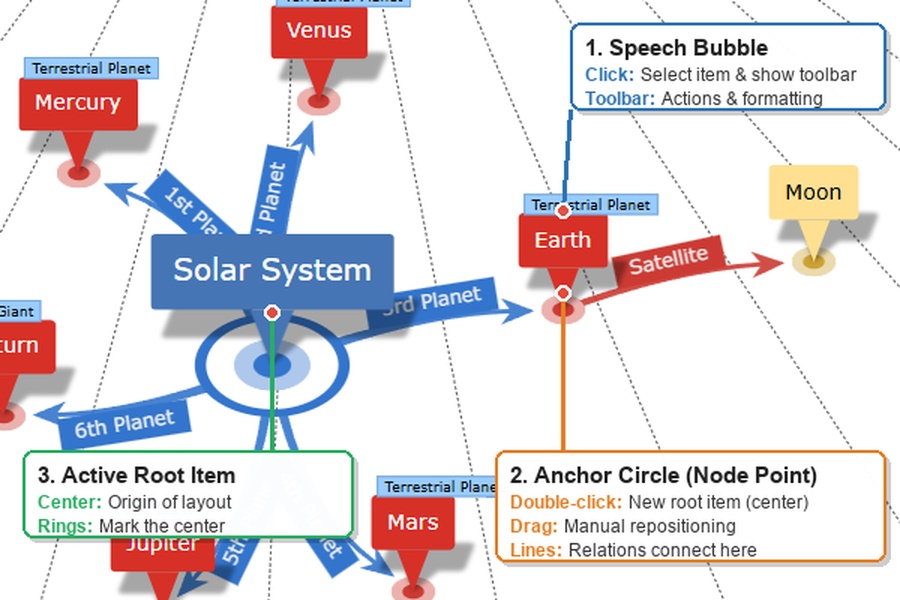
The program primarily uses an automatic layout (Auto-Layout) that calculates the arrangement of nodes in real time to ensure the diagram remains clearly structured. You can still move items manually: Each item has a small circle at the bottom (the actual node). Do not grab the text box, but drag and drop this small anchor point to the desired location. Note: This shift is always saved relative to the automatically calculated position and is dependent on the current root item. If you change the layout or the center, the shift will be reset. You can cancel shifts at any time by clicking on the item and then clicking on "Reset Position" or "Reset all Positions" in the context toolbar that appears.
How can I change the order of items?
You have two options: 1. Automatic Alphabetical Sorting: Select the parent item and click "Sort Child Items (Ascending)" or "Sort Child Items (Descending)" in the left Edit Diagram menu or in the floating context toolbar. 2. Manual Reordering in Table View: Switch to "Table" (Table View) via the toolbar at the top right. Tap/click on the desired item for more than 2 seconds and drag-and-drop it to the new, desired position.
How can I make an item a child of a different parent item?
Click on the relation line leading to the item. You can now simply drag-and-drop the starting point of this line to the new parent item to change the hierarchy.
When adding a new item, the center suddenly changes. Why?
By default, the app limits the number of simultaneously visible items to 100 to keep the layout smooth. When you add a new item and this limit is almost reached (at approx. 95%), the system automatically makes the parent item the new root item (center) so that the new item can actually be drawn in the visible area.
My diagram is extremely large and the program responds slowly. What can I do?
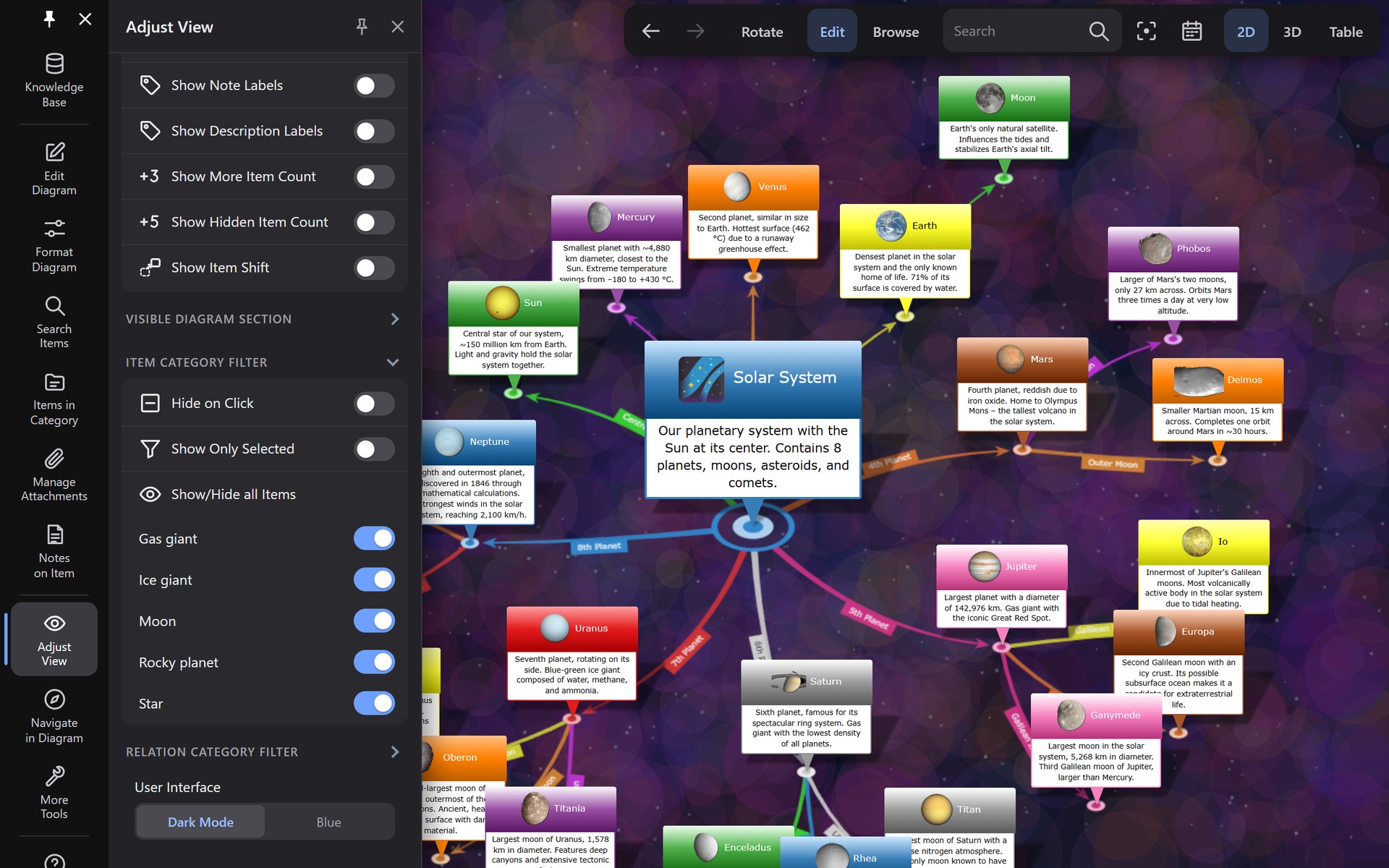
The calculation speed depends directly on the visible items, not on the total file size. In the "Adjust View" menu under "Visible Diagram Section", reduce the "Max. Number of visible Items" (e.g., to 100). Additionally, switch off the "Animate Transitions" option in this menu.
I do not see my whole diagram, only a section. Where is the rest?
This is the core concept of the app, similar to "Google Earth": You can store millions of items, but you always only look at a zoomed-in area. Double-click on the small anchor circle of any item (or press Ctrl+G, or search for it using the quick search bar at the top right or the full-text search panel) to make it the new center. This way you can interactively "browse" through the massive network.
Is there a "Dark Mode" for the app?
Yes! Go to the "Format Diagram" menu, select the "Diagram" tab and set the "Background Color" to black. You switch the user interface itself under "Adjust View" in the "User Interface" section from "Blue" to "Dark Mode".
I accidentally deleted or moved something. Can I undo this?
Yes, the system remembers the last 200 work steps. You can revoke them at any time in the "Edit Diagram" menu under "Undo". These steps are stored directly in the database, meaning that an "Undo" is possible even after you have closed and restarted the app.
How can I enlarge the menus and fonts of the user interface?
If the controls are too small for you on a high-resolution screen, go to the "App Settings" menu. There you can click "Increase [+]" under "Size of the user interface controls:" to adapt the interface to your needs.
📤 Import, Export & Advanced Interfaces
My exported image (PNG/JPG) is blurry. How can I improve the image quality?
If you leave the zoom at 100%, the image can appear pixelated for complex maps. Go to the "Adjust View" menu and increase the "Zoom" slider to 150% or even 200% before you export the diagram as an image. This renders the image in a much higher resolution, keeping it razor-sharp.
Can I export the diagram as a clickable HTML page (with graphical lines)?
No. The "Export as Text Document" function generates a formatted HTML document in text and outline form (including a table of contents). Since the 3D nodes are calculated dynamically, the graphic itself cannot be exported as a simple 2D HTML file. Instead, you can export the diagram as an interactive 3D Model (GLB file) and embed it into a webpage.
How do I export a rotating video (or animated GIF)?
Simply switch to "3D" via the toolbar at the top right. Then click on "Rotate" in the same toolbar and subsequently on "Record" (during recording, "Recording..." and "Stop" will appear there). Select the desired video size and rotation speed in the following dialog box. Be sure not to choose too high of a resolution, otherwise the GIF files can become extremely large.
Why is the Wikipedia import missing in the web version?
For technical reasons, the functions for directly importing Wikipedia articles, Wikidata networks, or entire websites are only available in the installed native app versions (Windows, macOS, iOS, Android).
Is there a direct ChatGPT / AI integration in the app?
A direct API connection to LLMs within the user interface does not currently exist. However, you can already use AI tools like ChatGPT by asking them to convert texts into the JSON format of the KnowledgeBase Builder. You can then easily import this JSON file into your map via "Import / Export" -> "Import JSON Data".
Can I have PDF or Word documents automatically converted into a mind map?
A direct file import of .pdf or .docx for automatic generation is not possible. Instead, copy the text from the Word/PDF document to your clipboard. Then use the "Analyze Text" function under "Edit Diagram" -> "Insert" to automatically generate a linked map from the text. Alternatively, you can always just add any text of any length as a note to an item.