🔍 Search Items
The Search Items menu offers an extremely powerful full-text search for your entire knowledge base. As your mind map grows to thousands or millions of nodes, this becomes your most important navigation tool. The system searches not only the item names but also all in-depth content such as descriptions and detailed text notes.
⚡ Quick Search (Toolbar) vs. Full-Text Search (Panel)
KnowledgeBase Builder provides two distinct search tools:
| Feature | ⚡ Quick Search (Top Toolbar) | 🔍 Full-Text Search (Side Panel) |
|---|---|---|
| Location | Input field in the upper right toolbar | Search Items menu in the left sidebar |
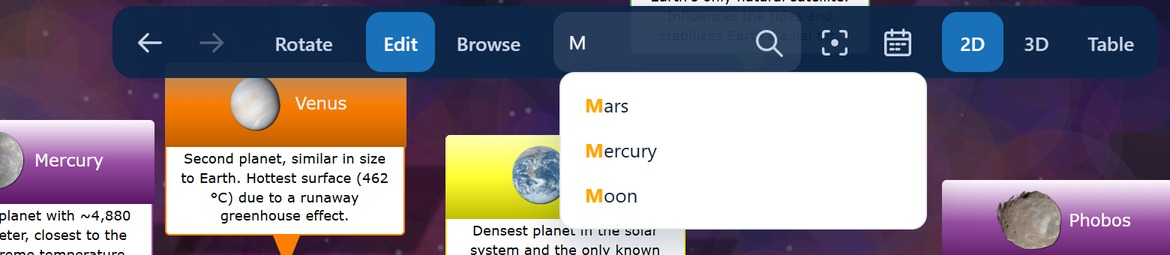
| Search Scope | Node names only | Node names, descriptions, HTML notes & attachments |
| Hit Presentation | Interactive auto-complete dropdown while typing | Scrollable list with highlighted text snippets |
| Purpose | Instant navigation to known items by name | Deep thematic research across notes and documents |
🎛️ The Panel Search Bar
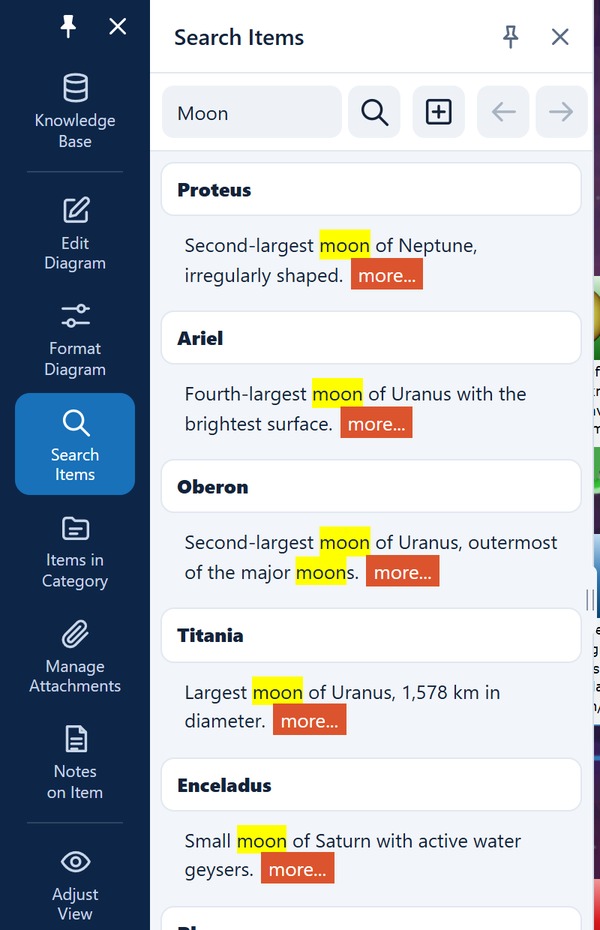
At the very top of the menu window, you will find the input field and the corresponding toolbar to control your search.
- Search field: Enter your desired search term here.
- Start search (Magnifying glass): Starts the full-text search through the entire database.
- Cancel search (X): Stops an ongoing search process. This is particularly useful for gigantic databases if you want to cancel the search prematurely.
- Show all search results (+): To keep the list clear, only the first found text snippet per item is displayed by default. Click on this plus symbol to immediately expand all further hits in all found items. The symbol then changes to a minus to "Hide multiple search results".
- Previous search / Next search (Arrows): The system remembers your search history. With the left and right arrows, you can conveniently browse back and forth in your search history without having to retype old terms.
🧩 Search Logic: Prefix Matching (Word Starts)
The search engine operates with prefix matching (matching from the start of words):
- Searching for
SunfindsSun,Sunlight, andSunspot. - Searching for
lightfinds the separate wordLight, but not the compound wordSunlight. - Pro Tip: When searching for compound words, always type the beginning of the word or the primary base term.
Adjusting the width of the window
Long item names and text snippets need room. You therefore set the width of the search window steplessly at its right-hand edge: grab the edge and drag it to the right or to the left. A small handle sits in the vertical middle of the edge for this, but you can just as well grab any other spot along the edge.
The width you set is remembered as a percentage of the window width. It is therefore still there the next time you open the panel, and it keeps its proportion when you resize the application window or rotate the device.
📄 Search Results & Diagram Navigation
The results are displayed below the search bar as a clear list. The system presents you with text snippets where your search term is highlighted in yellow for quick visual recognition.
- Click on the Item Name (Title): Immediately centers the item in the 2D or 3D diagram, selects it, and makes it the active root node if needed.
- Click on the Text Snippet: Highlights the specific search match in blue within the panel without moving the diagram's camera.
- more... / less ‹‹ : If a single item (e.g., in a very long HTML note) contains your search term multiple times, the red button "more..." appears at the end of the text snippet. A click on it specifically expands all other occurrences for exactly this item. With a click on "less ‹‹", you close the detailed view again.
💡 Pro Tip for Quick Research
The menu has a hidden automation for power users:
Automatic searching by highlighting: If you discover an interesting word in the list of search results and highlight it with the mouse (or your finger), the system automatically adopts this highlighted text as a new search term in the search field and immediately starts a new search! (Note: On touchscreen devices like tablets or smartphones, you have to manually tap the magnifying glass symbol briefly after highlighting the text to trigger the search process).