🏗️ How-To: Build a comprehensive knowledge base
The InfoRapid KnowledgeBase Builder is much more than a classic mind map drawing program; it is a powerful, database-driven knowledge management system. This How-To shows you the best practices for building a gigantic, searchable, and structured knowledge base with thousands of items from individual thoughts.
1. The Basic Principle: Entities, Attributes, and Categories
To build a database that is easily searchable and filterable later on, you should structure your knowledge logically.
- Entities and Attributes: Imagine you are creating a database about your friends or historical figures. The persons are your "entities" (main nodes). Everything you know about them (e.g., place of birth, year of birth) are the "attributes". Both are created as normal items in the map and connected with a line (relation). If a person is named "Henry Ford", they have a relation to the attribute "Greenfield" (as place of birth).
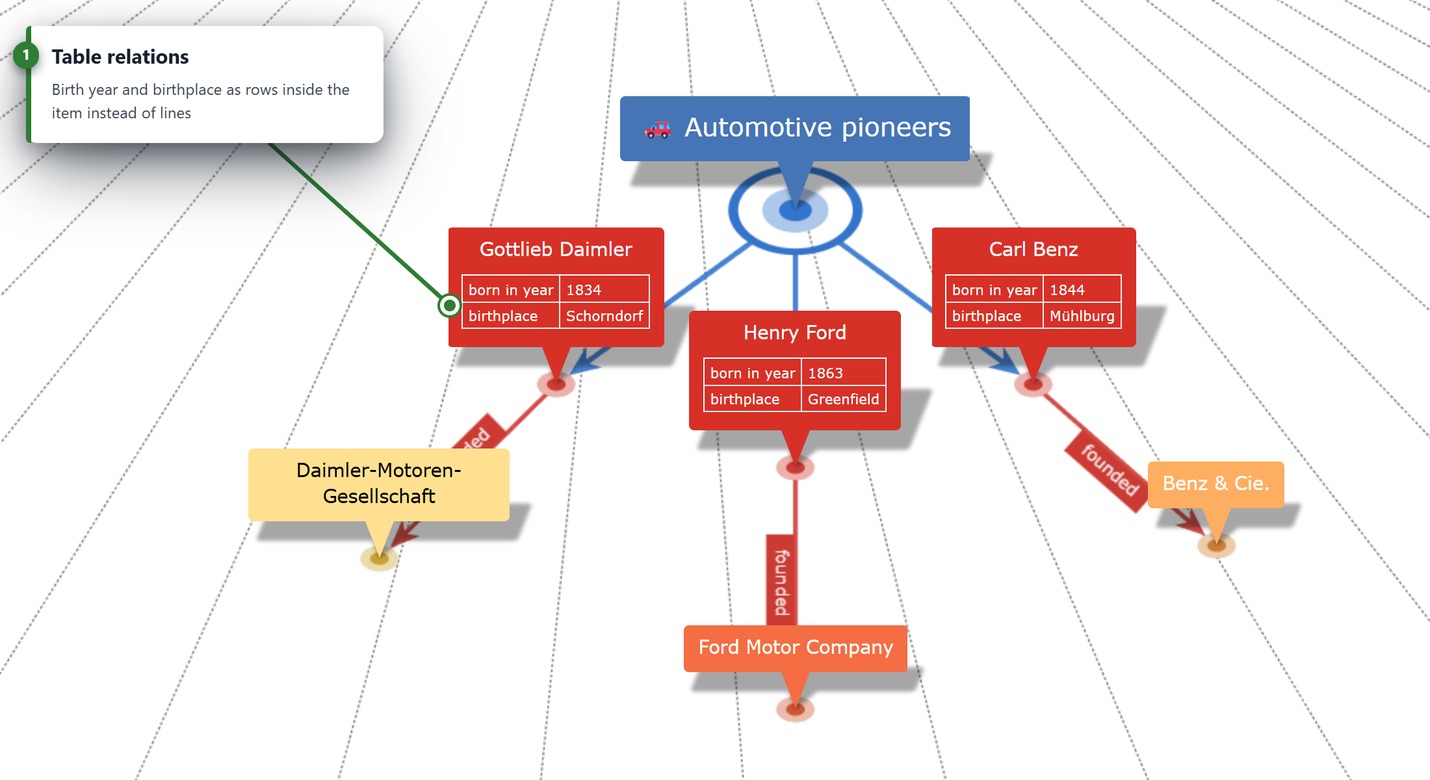
- Table Relations (outsourcing properties as a table): If an entity has many attributes, the diagram can quickly become cluttered due to the many branching lines. There is an ingenious solution for this: Select a relation line and click on the "As Table" option in the "Edit Relation" dialog. You can activate this separately for the forward and backward relation.
- The principle by example: Suppose the item "Henry Ford" refers to the item "1863". The forward relation is labeled "born in the year" and the backward relation "birth year of". If "As Table" is activated, a small table is displayed directly in the "Henry Ford" node: A row with the two columns "born in the year" and "1863". A table with the values "birth year of" and "Henry Ford" also appears in the target item "1863". Every additional relation marked in this way is simply appended as a new row in this item table.
- Clean up graphics: In the "Adjust View" menu, under the Diagram section, you can use the "Show Table Relations" option to control whether such relations should continue to be drawn graphically as lines in the diagram or only be displayed cleanly tidied up as table rows directly in the nodes.
- Use Categories: Always assign a category to each item (e.g. the category "Person" for Henry Ford and "Place of birth" for Greenfield). This allows you to later open the "Items in Category" menu and list all "Persons" or all "Places of birth", for example.
- Center & Discover: If you click on the year "1863" in this list, it becomes the center of the mind map, and you immediately see all persons born in this year (since they are all linked to this attribute).
2. Fast Data Entry & Automation
Instead of typing each item painstakingly by hand, the app offers ingenious automations for knowledge workers.
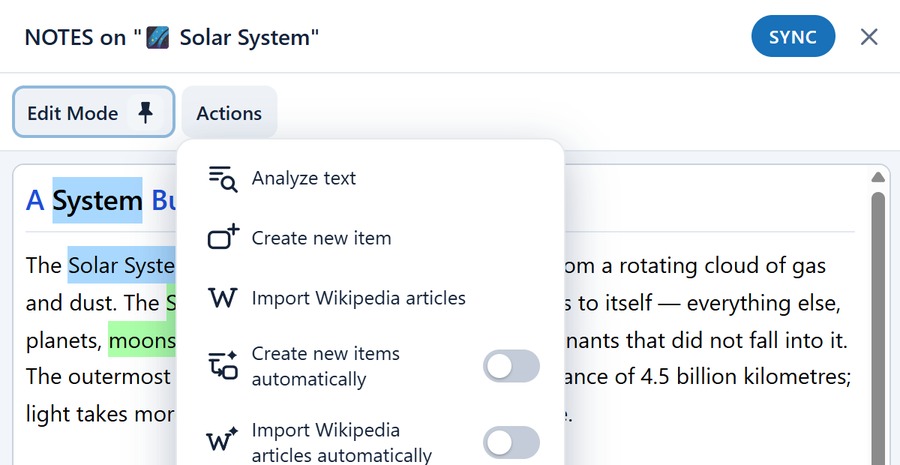
- Create new items from text notes: Paste a long text (e.g. from the internet) into the "Notes on Item" menu. Open the "Actions" menu there and switch on "Create new items automatically". As soon as you highlight an important word in the text, the app creates a new node in the diagram from it in a flash. The highlighted term becomes the name, and the corresponding sentence is automatically saved as a description.
- Wikipedia as a data source: An absolute highlight is the direct import from Wikipedia. Go to "Edit Diagram" and click on "Import Wikipedia articles". Enter a search term. The app downloads the complete article including images and inserts it formatted as an item into your map.
- Analyze Text: If you have a long text document, you can have the system search the text for key terms via "Edit Diagram" -> "Insert" -> "Analyze Text". The app filters out stop words and fully automatically generates a networked mind map from the most important words.
3. Mass Import of Existing Data
If you have already collected structured data in other programs, you can import it in fractions of a second.
- Insert Outlined Text: Do you have text files, Word documents, or Logseq Markdown files (
.md) where hierarchies are indicated by indentations, bullet points (-), or HTML lists? Use "Edit Diagram" -> "Insert" -> "Insert Outlined Text". Paste your list there (or drop the file into the dialog), and the app immediately builds a complete mind map and knowledge graph (including[[WikiLinks]], dates, and properties) from it. See the Outlined Text Syntax Reference for full syntax details. - Import CSV Data (Excel tables): Most corporate data is in Excel. Export your Excel table as a CSV file and use "Knowledge Base" -> "Import / Export" -> "Import CSV Data".
- The top row of the table is automatically interpreted as category.
- Each row in the table is understood as a series of relations leading from the first item of the row to the remaining items of the row.
- You can use special column headings like
$itemnote(for notes),$itemdescription(for descriptions) or$itemurl(for hyperlinks) to feed your items with rich content directly during import.
4. Structuring and Cleaning Up Large Networks
As your knowledge base grows, you need to keep track of it.
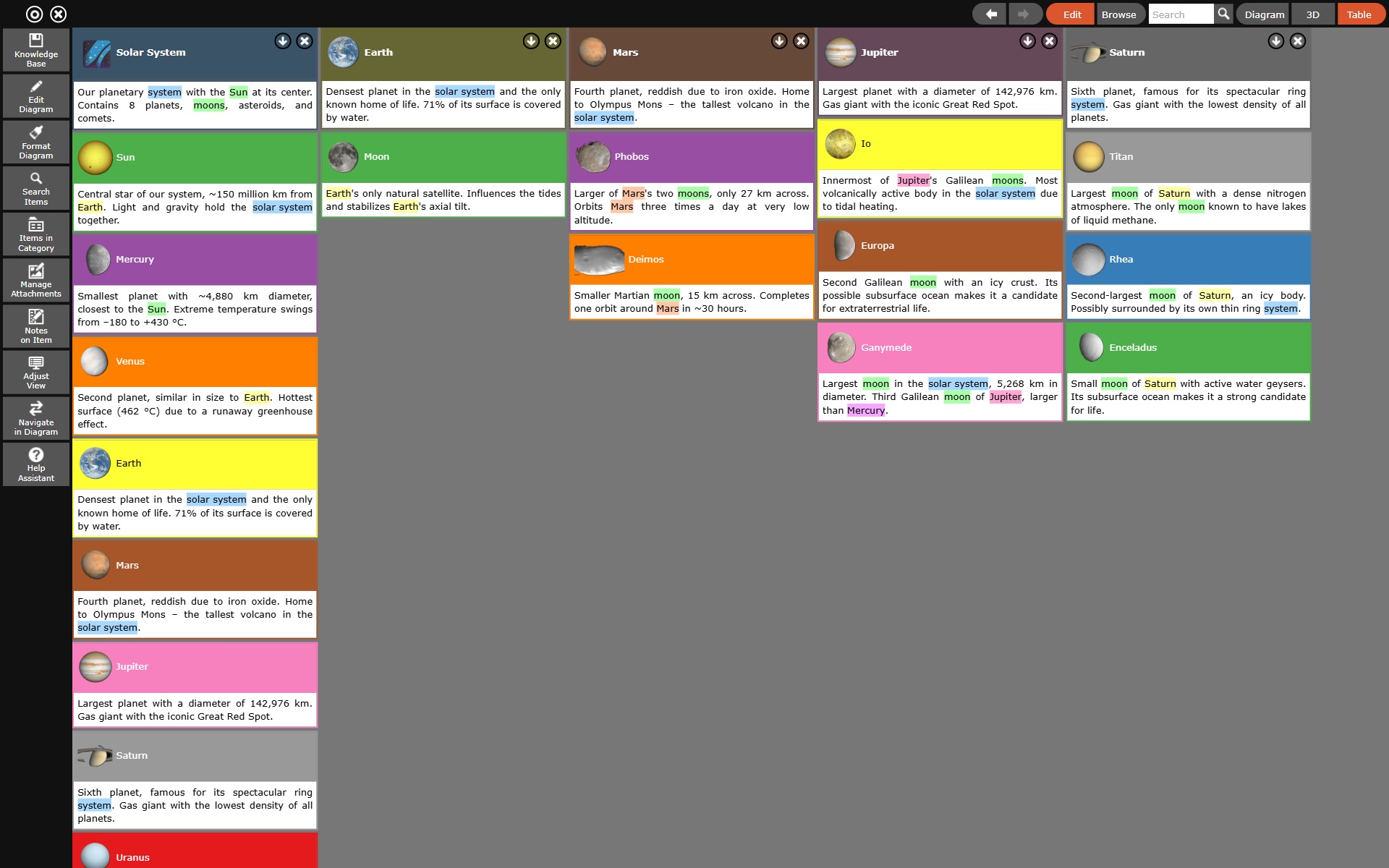
- Use the Table View: To clean up hierarchies or re-sort child items, switch to the "Show Table View" via the toolbar at the top right. Here you can precisely put items into the desired order via drag and drop.
- Manage Cross Connections (Cross-Links): You can drag and drop any items from the left sidebar ("Items in Category") onto an item in the visible diagram to immediately create a new relation line.
- Limit visibility: Large databases can become slow if too many items are drawn at the same time. In the "Adjust View" menu under "Visible Diagram Section", reduce the "Max. Number of visible Items" (e.g., to 100) so that the 3D layout remains smooth.
5. Backing up databases and working cross-platform
Your compiled knowledge base is valuable. The InfoRapid KnowledgeBase Builder works according to the secure "Offline-First" principle.
- Local SQLite databases: All data is stored locally on your device in a single
.kdbfile. There is no automatic cloud synchronization in the background. - Sync via Cloud Services: To work on the same map on PC, tablet, and smartphone, manually save your
.kdbfile to a cloud folder like OneDrive, Google Drive, or iCloud via "Knowledge Base" -> "Save as". - Manual Reload: If you have changed something on the tablet, you must manually update the file on the PC afterwards via "Knowledge Base" -> "Reload" to see the latest data.
- Optimize Database: Regularly use the "Reduce Database Size" command in the "Knowledge Base" menu. This deletes the history of "Undo" commands and frees up unused storage space in the SQLite file, keeping your database fast and compact.