✍️ How-To: Novel planning and worldbuilding
For authors, screenwriters, and worldbuilders, it is often the biggest challenge to keep track of hundreds of characters, complex storylines (plots), and fictional locations. The InfoRapid KnowledgeBase Builder is the perfect tool to visually structure your story and build a vibrant, interconnected story universe.
This How-To shows you how to optimally use the app for your novel and story planning.
1. Structuring the story universe (Categories)
Before you start writing without a plan, you should define basic categories for your world.
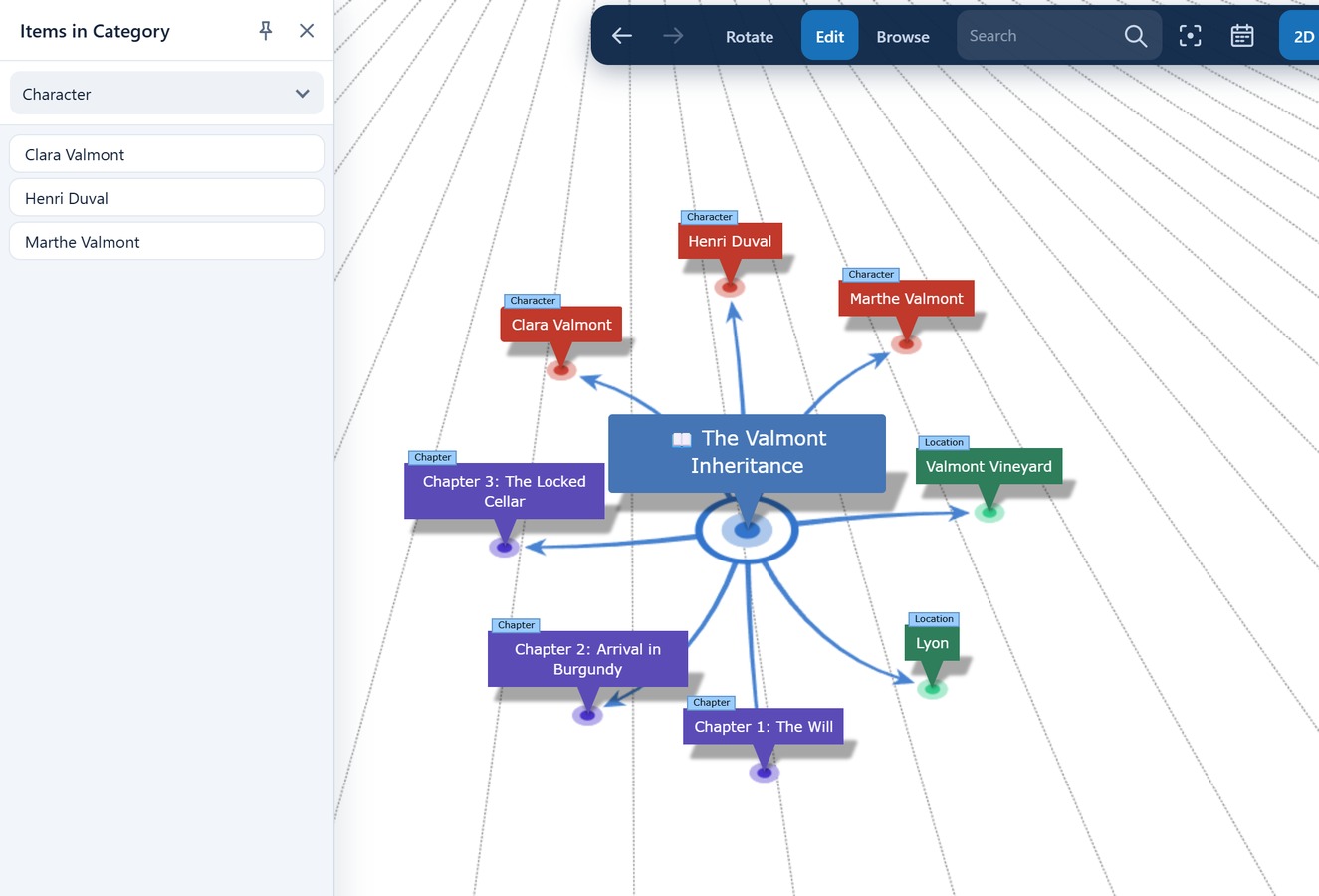
- Define categories: Assign a clear category to each new item. Useful categories for authors are, for example,
"Character","Location","Chapter","Faction"or"Event". - Use the reference book: Via the "Items in Category" menu, you can later display all your "Characters" or all "Locations", for example, clearly arranged as a list. A click on a name immediately centers it in the mind map.
2. Developing vibrant characters
In the KnowledgeBase Builder, a character is not just a simple text box, but a node full of information.
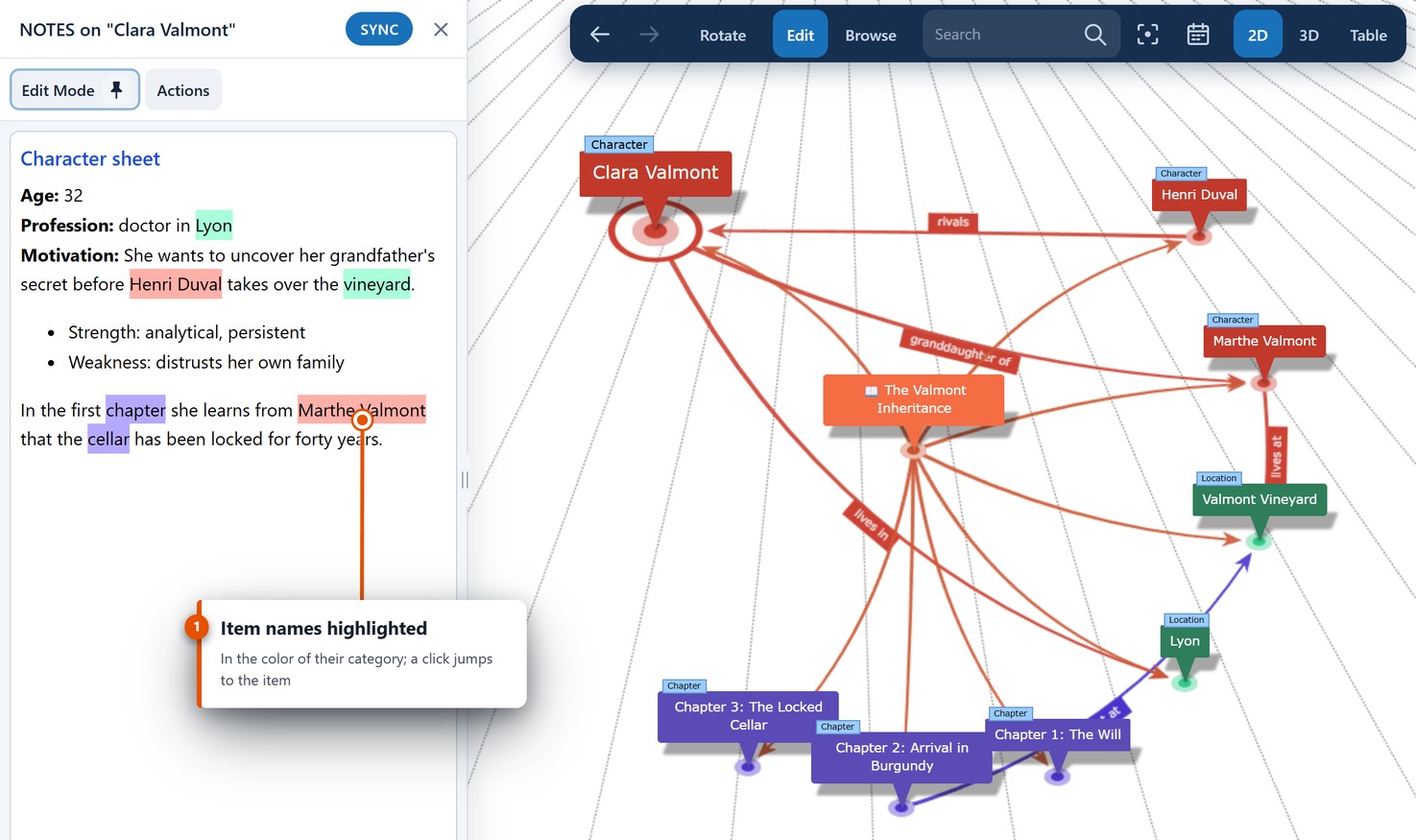
- Character sheets (Notes): Use the "Notes on Item" menu to store detailed backstories, motivations, strengths, and weaknesses as formatted HTML text.
- Visual references (Images): Add portraits, sketches, or reference photos (mood boards) to your characters or locations via "Edit Diagram" -> "Insert Images". These are then displayed as a practical preview in the tooltip.
- Relationship networks (Cross-Links): Draw relation lines between your characters and label them (e.g., "is enemies with", "loves", "sibling of"). This way you can see at a glance how your characters relate to each other.
3. Planning the plot (Timelines and chapters)
A story needs a chronological sequence. The program offers special tools to help you keep track of your storyline.
- Create the timeline: Use the "1-Column Grouped" layout in the "Adjust View" menu. This layout forces your nodes into a vertical line and is excellent for building a chronological timeline of your story events (from prologue to epilogue).
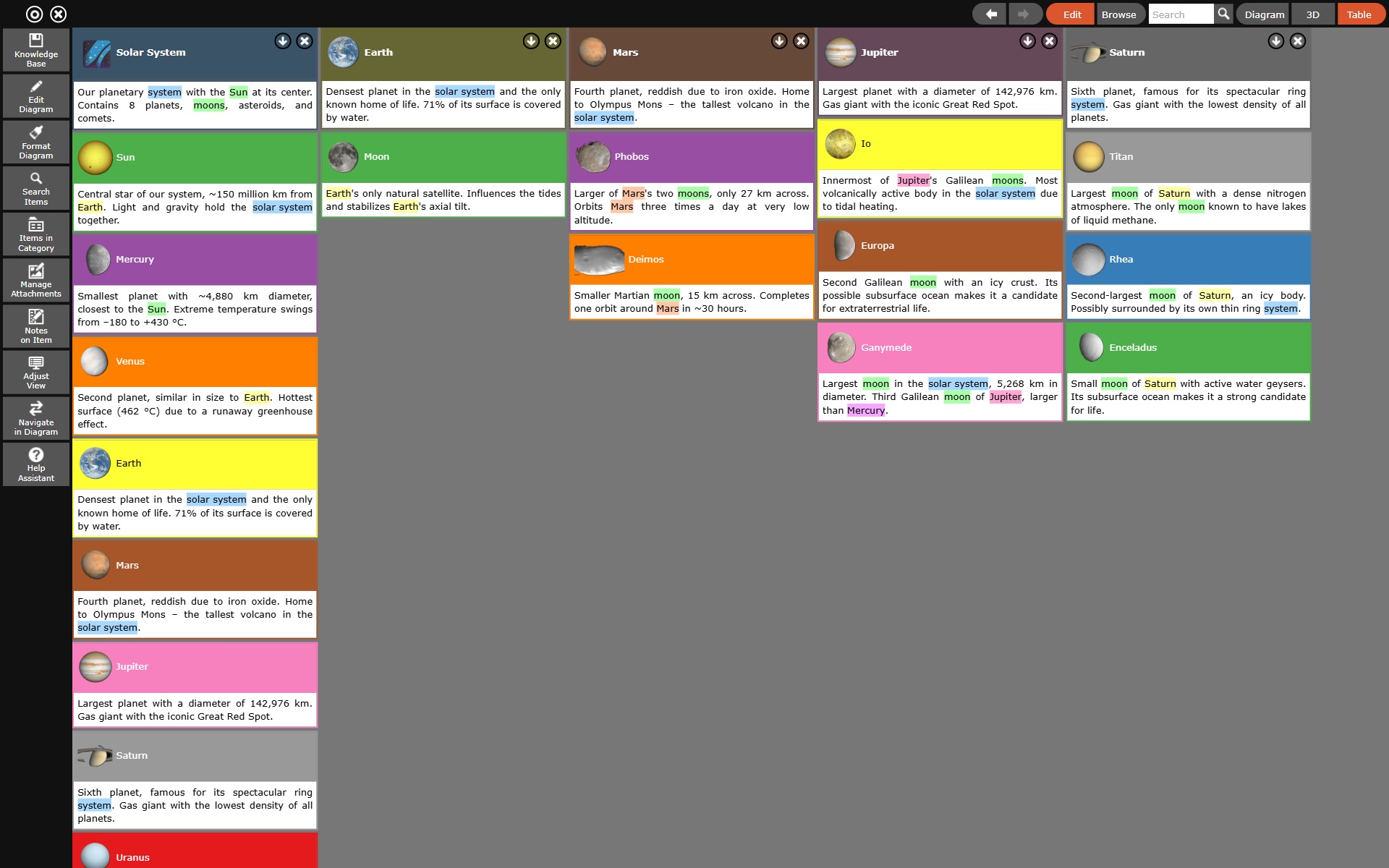
- Rearrange scenes and chapters: If you notice that the suspense curve is not right and you need to move scenes, switch to the "Show Table View" via the toolbar at the top right. There you can easily drag and drop your chapters and scenes into a new, better order.
4. Automatic linking while writing
When you write plot summaries, the app can help you connect them.
- Highlight names automatically: In the "Actions" tab (in the notes window), activate the "Highlight item names" option. Now, if you mention the names of characters that already exist in the diagram in your note for "Chapter 1", the system will highlight these names in color.
- Fast connection: Simply select a character's name in your text and use the "Create new items automatically" option to rapidly grow new branches out of your descriptions.
5. Keep the focus on the essentials
In an epic saga with thousands of items, the overall view quickly becomes too complex.
- Center: If you are currently working on developing a specific character, double-click on the item of this character to make it the root item (center). The system hides everything irrelevant and you only see the direct relations of this character (Which places have they visited? In which chapters do they appear? Who are their allies?).
- Limited visibility: To keep your focus while writing, reduce the number of simultaneously visible items under "Adjust View" -> "Visible Diagram Section" -> "Max. Number of visible Items". This way, the rest of the plot won't distract you from the current scene.