🏷️ Tags
While every item and every relation can be assigned exactly one category, tags let you attach any number of additional labels. This is useful whenever a single classification is not enough: a person can be filed under the category "People" and at the same time carry the tags "Nobel Prize", "Germany" and "Physics".
Tags and categories share the same vocabulary. Every name you have ever used as a category is also available as a tag, and vice versa. You therefore do not have to maintain two separate lists.
🔖 Tags vs. Categories
| Category | Tag | |
|---|---|---|
| Number per item | exactly one | as many as you like |
| Determines colour and shape | yes | no |
| Available in the category filter | yes | yes |
| Listed in Items in Category | yes | yes |
The decisive difference is the formatting. The colour, shape and font of an item are taken from its category only. Tags never influence the appearance — this keeps the diagram readable even when an item carries many labels.
✍️ Assigning Tags
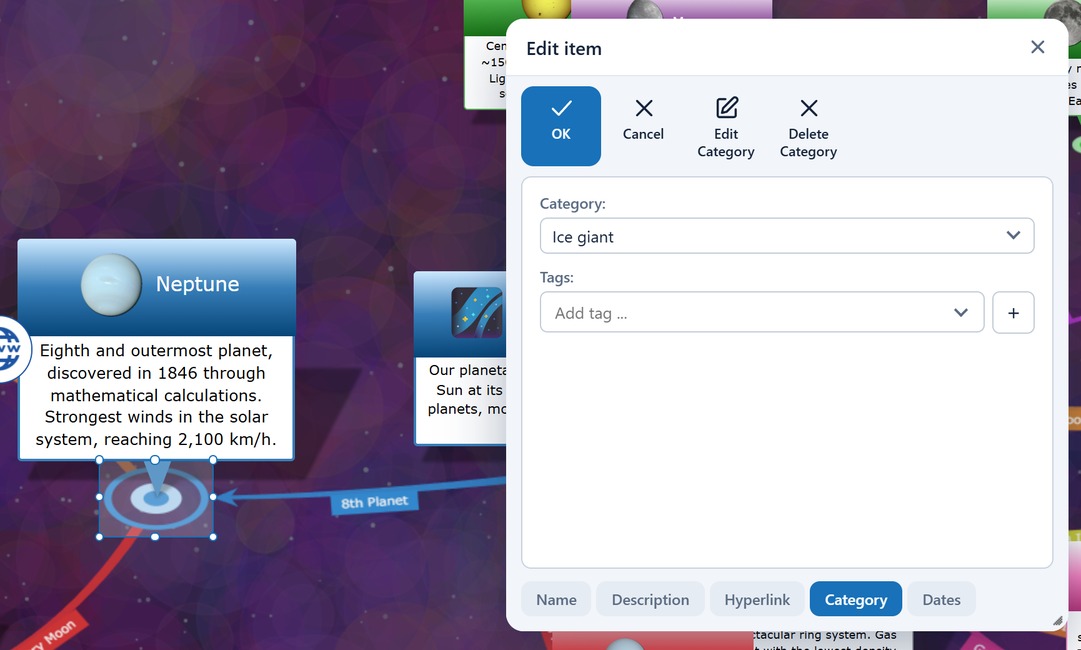
Open the properties dialog of an item (or a relation) and switch to the Category tab. Below the category field you will find the Tags field.
- Add a tag: Type a name and click the + button next to the field. The tag then appears as a small chip above the input field.
- Enter key: Instead of the + button you can simply press Enter.
- Pick an existing tag: Click the arrow at the right-hand edge of the field to open the list of all existing names, then select an entry.
- Remove a tag: Click the × on the chip.
Text is never lost
If you have typed a name but have not yet confirmed it with + or Enter, the text is automatically turned into a tag when you close the dialog with OK — exactly as the category field behaves.
Names consisting only of digits (for example 2026) are permitted and are treated like any other name.
🔍 Finding Tagged Items
The Items in Category menu works with tags as well. If you select an entry from the drop-down list, the list below shows all items that carry this name — no matter whether as a category or as a tag.
This is what makes tags useful for navigation: a name such as "Nobel Prize" that would never make sense as a category, because the items already belong to "People", can still be used as a full-blown access path to your data.
🎛️ Filtering by Tags
In the Adjust View menu the sections Item Category Filter and Relation Category Filter list all names of your database. Switching an entry off now affects both the category and the tag of the same name.
Two modes are available, switched with the Show Only Selected entry at the top of the section:
- Off (default) — hide: An element disappears as soon as one of its labels is switched off. Use this to remove noise, for example to hide everything tagged "Draft".
- On — show only: An element remains visible as long as at least one of its labels is switched on. Switch everything off and then switch on a single tag to isolate exactly that set.
The two modes complement each other: the first is good at removing, the second at isolating. Elements without any category and without tags always stay visible, because they cannot be addressed by the filter at all.
The path from the root counts
The diagram is built from the root item outward. An item therefore only appears if its path to the root is visible as well – hide an item and its children disappear with it. The root item itself always stays. If you want to isolate, say, a critical path with Show Only Selected, give the tag to the whole chain from the root to the targets, not just to the end points.
🏷️ Display in the Diagram
If Show Category Labels is enabled in the Adjust View menu, the tags appear as additional coloured labels next to the blue category label above the item.
Bear in mind that an item with many tags produces a correspondingly wide label row. If this disturbs the layout, simply switch the labels off — the tags remain assigned.
💡 Notes
- Renaming and deleting: Because tags and categories are the same records, the Edit Category and Delete Category buttons in the properties dialog also affect the name when it is used as a tag elsewhere. Deleting removes the name from all items that carry it.
- Copies: When you copy an item and paste it again, the tags are not carried over.
- Import and export: In the JSON format the field
categoryIdbecomes a list as soon as tags are present. The first entry is the category, all following entries are the tags:"categoryId": [1, 5, 7]. If an element has tags but no category, the first entry is-1. Without tags the previous short form"categoryId": 1is kept. - Undo: Adding and removing tags can be undone with Ctrl+Z like any other change.