📑 Outlined Text Syntax Reference (Markdown, Text, HTML)
The Insert Outlined Text tool in the Edit Diagram -> Insert menu lets you generate hierarchical mind maps, complex knowledge graphs, and scheduled project timelines in seconds from structured text, Markdown files (.md), or HTML lists.
Instead of manually drawing and linking individual nodes, you can simply write or export your data as text.
1. Overview & Dialog Controls
Open the dialog via Edit Diagram -> Insert -> Outlined Text.
- Input Methods: Type or paste text directly into the input area, open a file using the file browser, or drag and drop a text, Markdown, or HTML file directly onto the dialog window.
- Format Switching: Click the mode button in the top-right corner to toggle between the three supported formats:
Markdown: The hierarchical outliner Markdown format (as used in Logseq).Text: Classic tab- or space-indented outline text with KBB attribute syntax.HTML: Nested HTML lists (<ul><li>) and headings.
- Automatic Format Detection: When you open or drop a file or paste content, the app automatically detects the format (e.g. by bullet points
-, Markdown headings#, or HTML tags such as<ul>) and switches to the matching mode. - Load Example: Click the Example button to populate the text field with a comprehensive real-world scenario to explore the active format's syntax immediately.
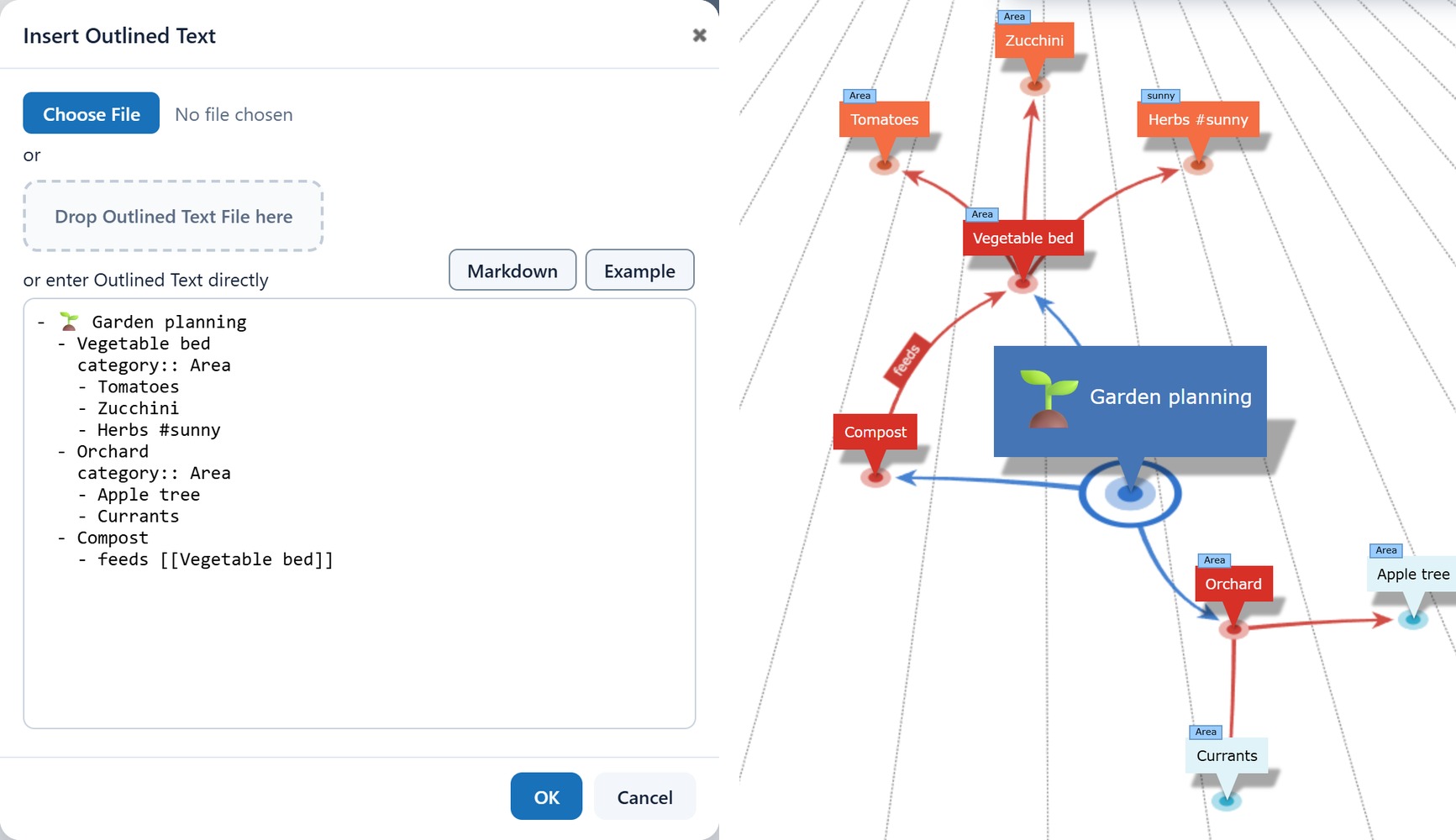
2. Markdown Syntax (Outliner & Logseq Format)
The Markdown format follows the structured outliner paradigm used by apps like Logseq: Every block or outline item begins with a bullet point (-).
2.1 Hierarchy & Indentation
Nesting depth is determined by line indentation. You can use spaces (recommended: 2 or 4 spaces per level) or tabs:
- Main Topic
  - Subtopic 1
    - Detail 1.1
    - Detail 1.2
  - Subtopic 2
2.2 Headings & Emojis
- Headings: Markdown headings (
#,##,###, etc.) can be placed right after the bullet or at line start. Formatting markup like bold (**) is cleanly stripped for the item label. - Emojis: Emojis in item names are fully supported and provide clear visual distinction.
- # 🏛️ Main Project
  - ## 🚩 Milestone Planning
  - ## 💡 Ideas & Drafts
2.3 Tooltips & Descriptions
To assign a short description displayed as a tooltip on hover, enclose it in parentheses (...) immediately after the item name:
- 📐 Feasibility Study (Site analysis, cost framework and usage concept)
2.4 Categories & Tags
- Assigning a Category: Use the property
category:: Nameon an indented line beneath the block. If the category does not yet exist, it is created automatically:- 🚩 Project Management category:: Project Lead - Tags / Hashtags: Words prefixed with a hash symbol (e.g.
#Priority1or#Legal) are interpreted as tags or categories.
2.5 Wiki Links & Knowledge Graph Connections
Beyond tree hierarchies, you can create arbitrary cross-links between nodes:
- Wiki Links: Use double brackets
[[Target Node]]. If the target node already exists in the mind map, an edge is created connecting to it. If it does not exist, it is created automatically. - Alias Syntax: Use
[[Node Name|Alternative Label]]to reference a node under a different display label.
- ✅ Building Permit Approved
  Prerequisite for [[Foundation & Excavation]]
2.6 Block IDs & Block References
To target a specific block unambiguously (even if multiple nodes share the same label):
- Define Block ID: Add the property
id:: my-unique-block-idto the source block. - Block Reference: Reference that block from another node using double parentheses
((my-unique-block-id)).
- 🏁 Handover to Operations
  id:: handover-operations

- 🎉 Grand Opening Ceremony
  Follows ((handover-operations))
2.7 Typed Relations & Edge Labels
Cross-connections can be labeled and typed in three elegant ways:
- Prefix before Wiki Link or Block Reference:
- 🌡️ Sensor Network Feeds data into [[Cloud Platform]] - Property Syntax (Property Relation):
- ☀️ Photovoltaics supplies:: [[Server Rooms]] - Arrow Syntax (
>>):Optional: Text in square brackets- Permit Approved Prerequisite for [depends on] >> Construction::Foundation[...]defines the reverse direction label (back-label). A prefixedCategory::before the target name assigns the target to a specific category.
2.8 Timeline & Dates (UserData)
Properties formatted as key:: value attach structured metadata to nodes, which are visualized on the Timeline and listed in the Data tab:
| Property | Values | Description |
|---|---|---|
type:: |
task, milestone, event, person |
Item type (Task, Milestone, Event/Appointment, Person) |
start:: |
YYYY-MM-DD (e.g. 2026-03-01) |
Start date |
due:: / end:: |
YYYY-MM-DD (e.g. 2026-05-30) |
Due date or end date |
status:: |
open, inprogress, done |
Task status (Open, In Progress, Done) |
priority:: |
A, B, C (or 1, 2, 3) |
Priority |
assigned:: |
Name or role | Assigned person or team |
effort:: |
e.g. 4h, 3d, 2w |
Estimated effort |
- 📐 Feasibility Study (Site analysis and cost framework)
  type:: task
  start:: 2026-02-02
  due:: 2026-04-30
  status:: done
  priority:: A
2.9 Notes & Custom Properties
All indented lines beneath a block that are not bullet points and not reserved system properties are stored as formatted text notes on the item. Custom properties (e.g. budget:: $50,000) are included as formatted key-value pairs in the note.
3. Classic Text Syntax (Indented Text)
The classic text format is ideal for quick sketches and exchanging data with simple text editors or spreadsheets.
3.1 Hierarchy by Indentation
Each line represents an item. The hierarchy is defined by leading tabs (\t) or spaces:
Main Topic
    Subtopic 1
        Detail A
        Detail B
    Subtopic 2
3.2 Categories
A category is declared with double colons (::) at the end of a line. All subsequent items indented at the same or deeper level belong to this category:
Project Management & Milestones::
🚩 Project Management (Schedules and budget)
    📐 Feasibility Study
Alternatively, prefix the category directly to an item label: Construction & Infrastructure::🧱 Foundation.
3.3 Tooltips
As in Markdown, descriptions are appended in parentheses:
Feasibility Study (Comprehensive site analysis)
3.4 Dates & Data Fields in Curly Braces
In classic text mode, timeline and project metadata are appended in curly braces {...}:
📐 Feasibility Study {type: task, start: 2026-02-02, end: 2026-04-30, status: done, priority: A}
💶 Funding Commitment {type: milestone, due: 2026-05-15, status: done}
3.5 Cross-Links with >>
Cross-connections are specified on an indented line using >>:
✅ Building Permit Approved
    Prerequisite for [depends on] >> Construction & Infrastructure::🧱 Foundation & Excavation
4. HTML Syntax (Lists & Links)
HTML format is ideal for importing web page excerpts, blog posts, or documents exported as HTML from word processors.
- List Hierarchies: Nested unordered lists (
<ul><li>...</li></ul>) or ordered lists (<ol><li>...</li></ol>) are mapped directly to tree structures. - Hyperlinks: Links
<a href="URL">Name</a>adopt the anchor text as the item label and store the URL in the node's URL attribute. - Headings:
<h1>through<h6>are parsed as higher-level section nodes.
<ul>
  <li><a href="https://inforapid.org">💡 Innovation Center</a>
    <ul>
      <li><a href="https://inforapid.org/doc">🔍 Documentation</a>
        <ul>
          <li>💬 Support Community</li>
          <li>💎 Premium Features</li>
        </ul>
      </li>
      <li>✅ Quality Assurance</li>
    </ul>
  </li>
</ul>
5. Complete Practical Example (Markdown)
Paste this example into the dialog (Mode: Markdown) to experience the interplay of hierarchies, categories, timeline dates, and networked cross-connections:
- 🏛️ SmartCampus Innovation Hub (Flagship project for modern collaborative research)
  - 🚩 Project Management (Schedules, budget and reporting)
    category:: Project Management & Milestones
    - 📐 Feasibility Study (Site analysis and usage concept)
      type:: task
      start:: 2026-02-02
      due:: 2026-04-30
      status:: done
      priority:: A
    - 💶 Funding Commitment (Grant decision and banking consortium)
      type:: milestone
      due:: 2026-05-15
      status:: done
    - 🏁 Handover to Operations (Acceptance and key handover)
      type:: milestone
      due:: 2027-05-28
      status:: open
      id:: handover-operations
  - 📜 Permitting Process (Building applications and approvals)
    category:: Legal & Permits
    - ✅ Building Permit Approved (Official city approval)
      type:: milestone
      due:: 2026-06-30
      status:: done
      Prerequisite for [[Foundation & Excavation]]
  - 🏗️ Construction Execution (Structural shell and building services)
    category:: Construction & Infrastructure
    - 🧱 Foundation & Excavation (Civil engineering works)
      type:: task
      start:: 2026-07-01
      due:: 2026-09-15
      status:: done
    - 🖥️ Server Rooms & Data Center (High-security area with UPS)
      type:: task
      start:: 2026-11-02
      due:: 2027-02-26
      status:: open
      id:: server-rooms
      Hosts [[Cloud Platform & Dashboard]]
  - 📡 Digital Infrastructure (Campus networking and sensors)
    category:: IoT & Smart Platform
    - ☁️ Cloud Platform & Dashboard (Real-time analytics console)
      type:: task
      start:: 2027-02-01
      due:: 2027-04-30
      status:: open
  - 🌱 Energy & Sustainability (Carbon-neutral operation)
    category:: Energy & Sustainability
    - ☀️ Photovoltaics & Green Roof (450 kWp on roof and facade)
      type:: task
      start:: 2026-11-16
      due:: 2027-02-19
      status:: open
      Supplies ((server-rooms))
  - 📢 Communications & Launch (Public relations and events)
    category:: Marketing & Community
    - 🎉 Grand Opening Ceremony (Inauguration event)
      type:: milestone
      due:: 2027-06-11
      status:: open
      Follows ((handover-operations))
6. Import Best Practices
- Incremental Updates: The import works incrementally. If nodes with identical names already exist, their notes, categories, and properties are updated without creating unwanted duplicate nodes.
- Clean Start: If you wish to build an entire mind map freshly from text or Markdown, create a clean knowledge base first via Knowledge Base -> New to prevent lingering nodes from prior experiments.
- View on Timeline: After importing, toggle Tools -> Timeline to inspect all dates and milestones as interactive Gantt bars and event markers.